

Files is available in all plans. Limits differ per plan, for more information, check our Pricing page.
Adding Files as a Source
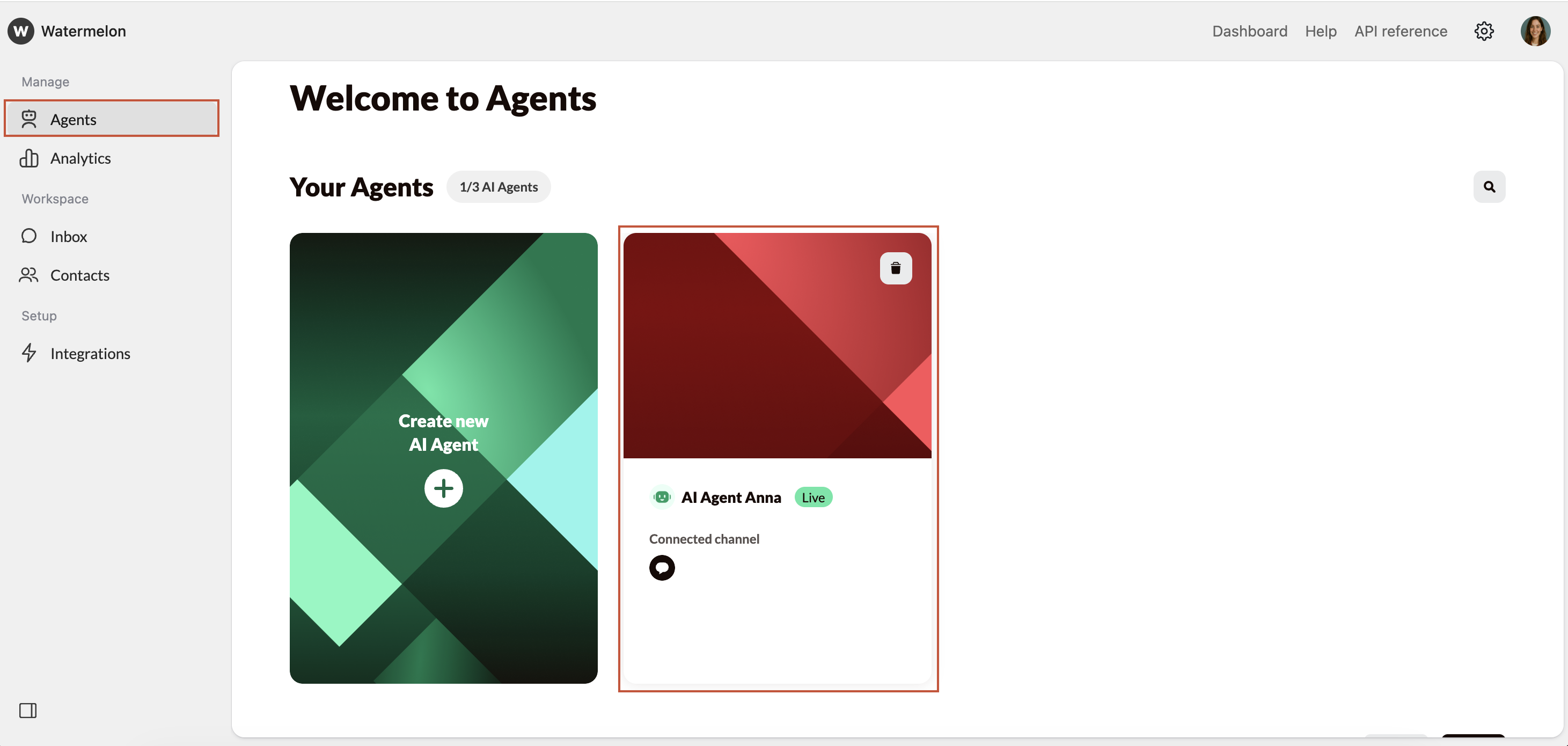
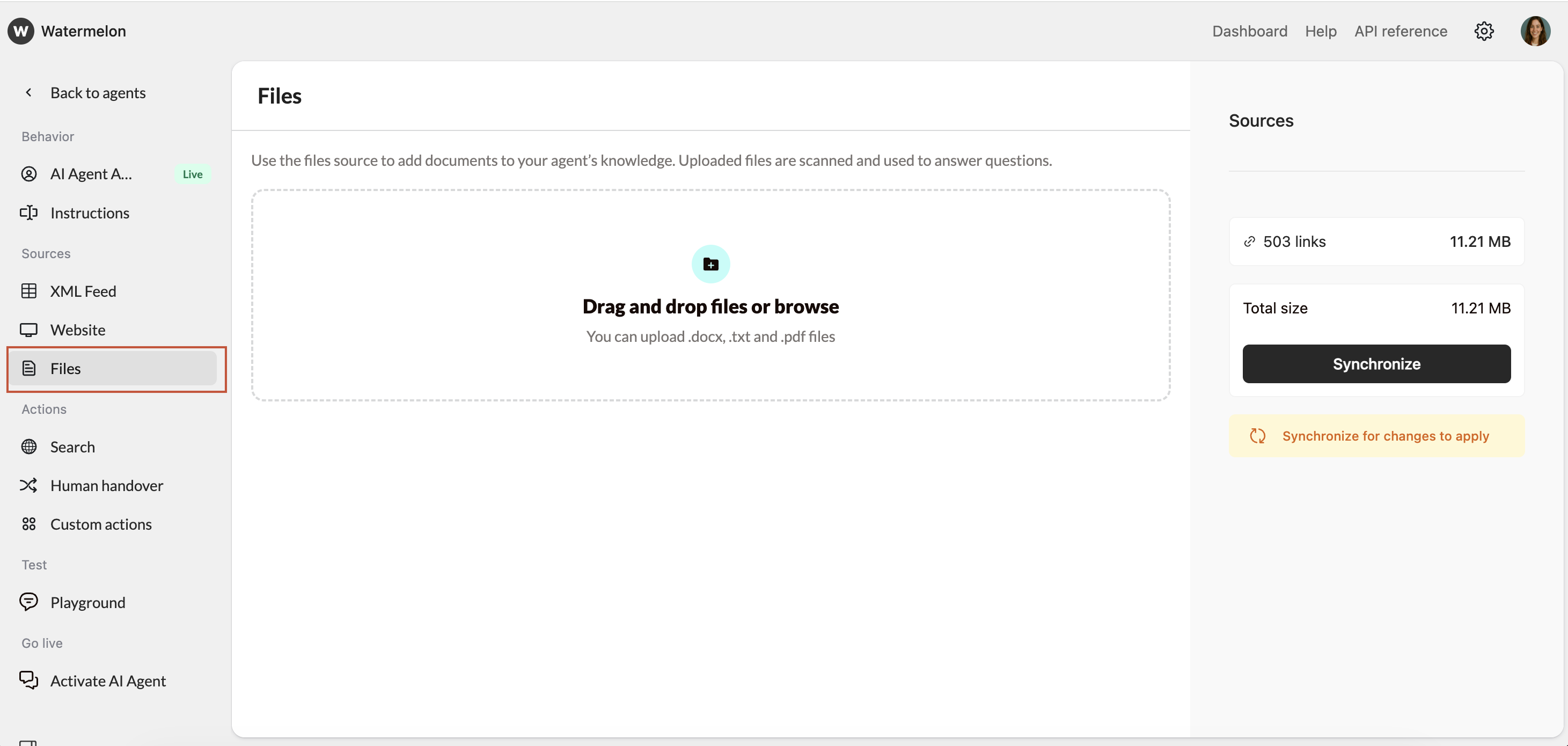
Adding a file
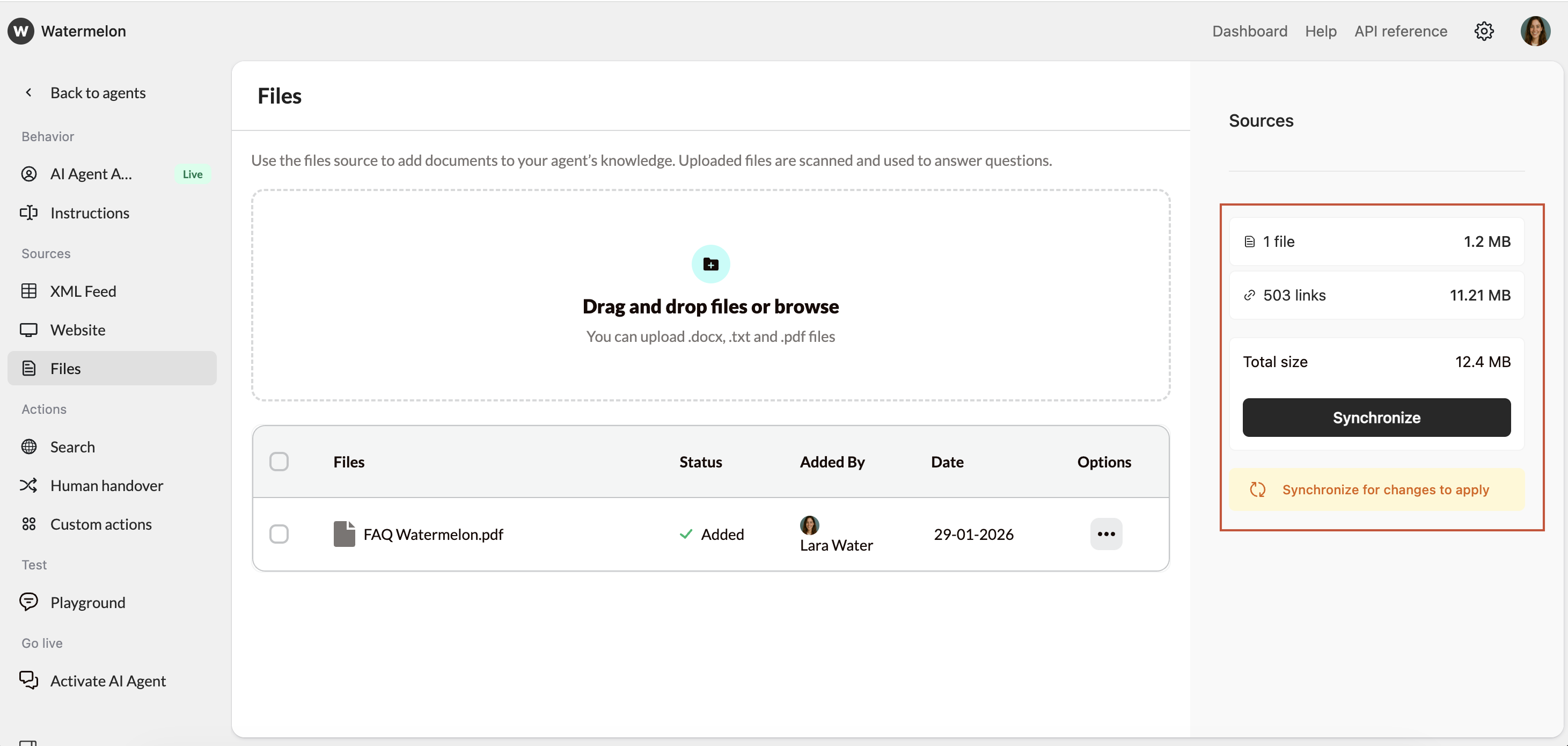
You can upload any .docx, .txt, or .pdf file you want your AI Agent to learn from. Once uploaded, the system immediately starts scanning the file and extracting its content. Supported details:- Maximum file size: 20 MB per file
- The scanning status
- The last scanned date
Managing your files
Each uploaded file includes options for easy management:- Edit — Replace the file with an updated version
- Download — Retrieve the stored file
- Delete — Remove the file and all scanned knowledge
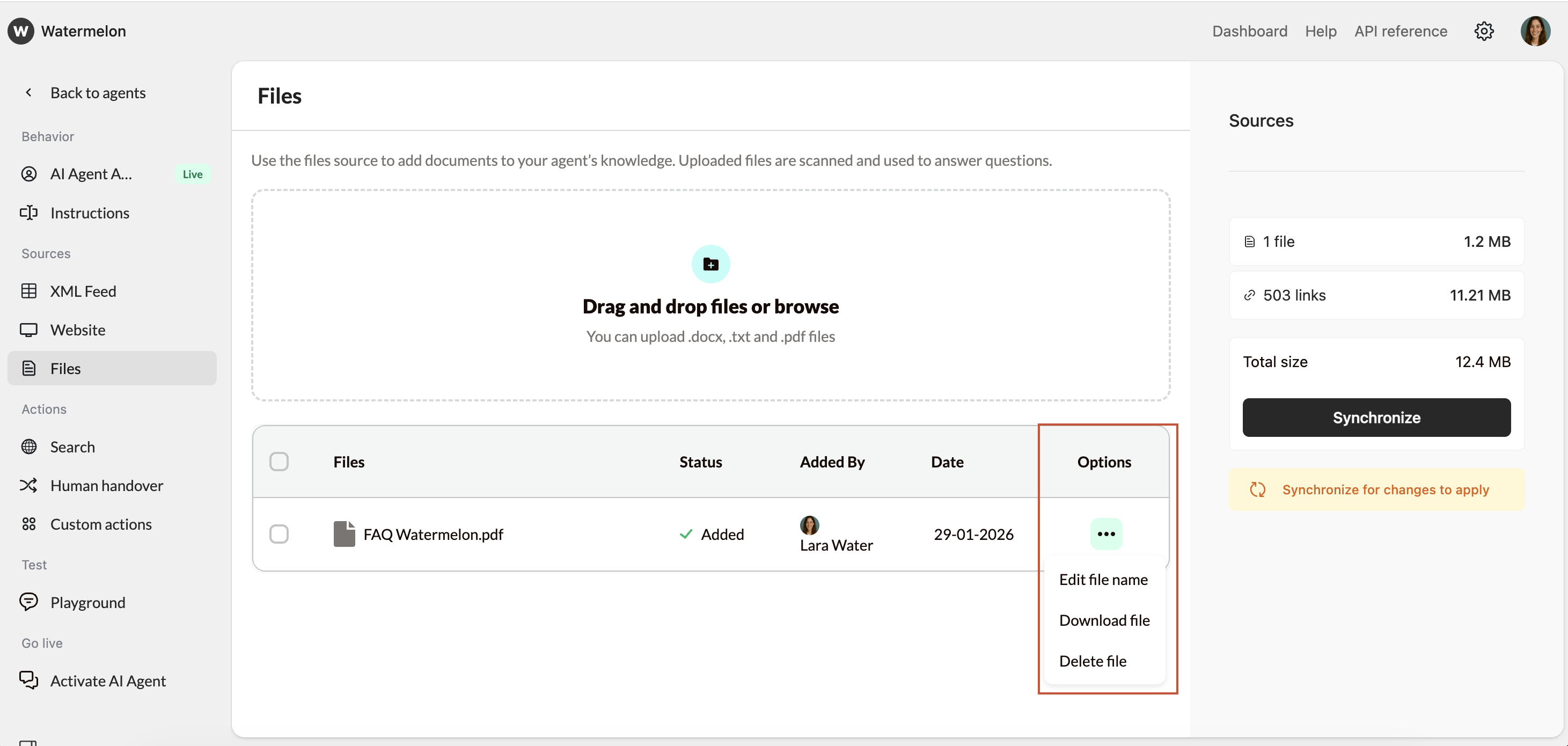
Deleting a file permanently removes all knowledge the AI Agent learned from that file. The Agent will no longer use information from it.
Testing the AI Agent with file knowledge
After your Agent finishes syncronizing, open the Playground to confirm how your AI Agent uses the content. Try asking questions directly related to the file to check:- Whether the Agent uses the correct information
- Whether the sources list shows your file
- Whether the answers match your expectations
If information inside the file conflicts with your Instructions or Personality, the AI Agent will always prioritize your written instructions over scanned content. This ensures consistency, tone, and accuracy based on your settings.