

- Opening, loading and closing the widget.
- Sending, receiving messages for both the AI Agent, end user and Human Agent.
- Outbound Clicks.
Available events
| Event name | Trigger | Event Parameters |
|---|---|---|
| widget_loaded | Fires when the widget has finished loading on the page. | widget_platform widget_id timestamp |
| widget_opened | Fires when a user opens the widget. | widget_platform timestamp |
| widget_closed | Fires when a user closes the widget. | widget_platform timestamp |
| widget_whatsapp_clicked | Fires when a click on the sitelink containing the WhatsApp icon is being registered. | widget_platform timestamp link_url link_type link_text |
| widget_facebook_clicked | Fires when a click on the sitelink containing the Facebook icon is being registered. | widget_platform timestamp link_url link_type link_text |
| widget_instagram_clicked | Fires when a click on the sitelink containing the Instagram icon is being registered. | widget_platform timestamp link_url link_type link_text |
| widget_chat_clicked | Fires when a click on the sitelink containing the chat icon is being registered. | widget_platform timestamp link_url link_type link_text |
| widget_email_clicked | Fires when a click on the sitelink containing the email icon is being registered. | widget_platform timestamp link_url link_type link_text |
| widget_phone_clicked | Fires when a click on the sitelink containing the phone icon is being registered. | widget_platform timestamp link_url link_type link_text |
| widget_custom_link_clicked | Fires when a click on a sitelink containing a custom link icon is being registered. | widget_platform timestamp link_url link_type link_text |
| widget_conversation_started | Website visitor sends first message | widget_platform timestamp |
| widget_message_sent | Website visitor sends a message | widget_platform widet_conversation_id timestamp total_messages |
| widget_agent_message_sent | AI agent sends message | widget_platform widet_conversation_id timestamp total_messages |
| widget_handoff_requested | Website visitor requests human handover | widget_platform widet_conversation_id timestamp total_messages |
| widget_user_joined | Human agent joins conversation | widget_platform widet_conversation_id timestamp total_messages |
| widget_user_left | Human agent leaves conversation | widget_platform widet_conversation_id timestamp total_messages |
| widget_handover_agent | Conversation is assigned back to the AI Agent | widget_platform widet_conversation_id timestamp total_messages |
| widget_user_typing | Human agent typing | widget_platform widet_conversation_id timestamp total_messages |
| widget_message_user_sent | Human agent sends message | widget_platform widet_conversation_id timestamp total_messages |
| widget_start_conversation_clicked | Conversation started | widget_platform widet_conversation_id timestamp total_messages |
| widget_conversation_archived | Conversation archived | widget_platform widet_conversation_id timestamp total_messages |
| widget_conversation_deleted | Conversation deleted | widget_platform widet_conversation_id timestamp total_messages |
| widget_gdpr_accepted | Website visitor accepts GDPR | widget_platform timestamp |
| widget_gdpr_declined | Website visitor declines GDPR | widget_platform timestamp |
| widget_feedback_submitted | Website visitor gives feedback to a message | widget_platform widet_conversation_id timestamp agent_name |
Tracking Events in GA4 from the Widget with Google Tag Manager
Install the widget
Install the website widget code using this guide
Check that events reach the dataLayer
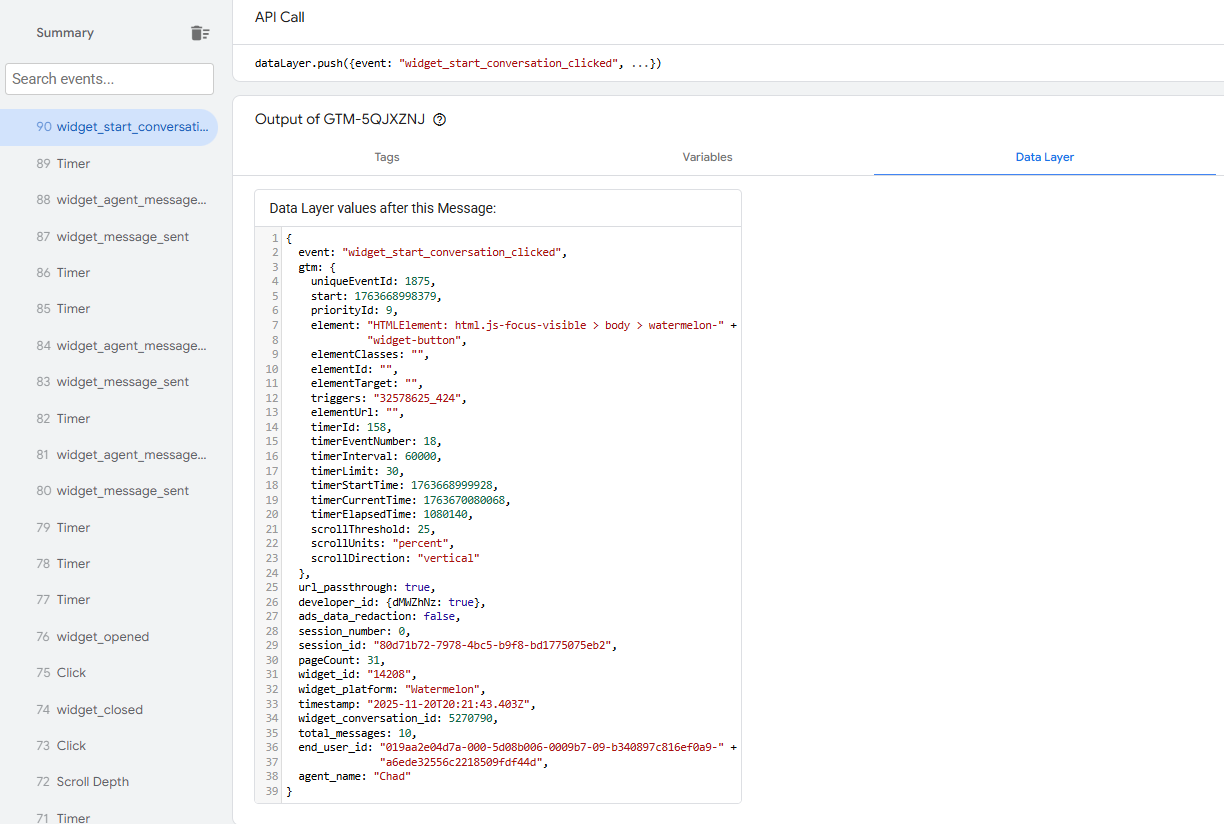
The widget pushes events into the browser’s dataLayer.To verify this:
-
Open your website with GTM Preview Mode enabled.
- Interact with the widget (fire an event).
- In the left panel, you should see event names appear under the “Events” section.
Create a GTM Trigger for a Widget Event
You can set up triggers in two ways, depending on your tracking needs:Option 1: Individual Triggers (One trigger per Event).
- In GTM, go to Triggers → New.
- Choose Custom Event.
- Enter the event name, for example: widget_conversation_started.
- Set This trigger fires on: All Custom Events.
- Save.
- In GTM, go to Triggers → New.
- Choose Custom Event.
- Select Use regex matching.
- Enter a pattern to match multiple events:
- ^widget_.* catches all widget events;
- ^widget_.*_clicked$ catches all click events only;
- ^widget_(opened|closed|loaded)$ catches specific event groups.
- Set This trigger fires on: All Custom Events.
- Save.
Create a GA4 Event Tag
To send the captured widget event to Google Analytics:
- Go to Tags → New.
- Choose Google Analytics: GA4 Event.
- Select your GA4 Configuration Tag.
- Under Event Name, use the same event name from the widget, for example:
Verify events
After publishing, test your events using DebugView: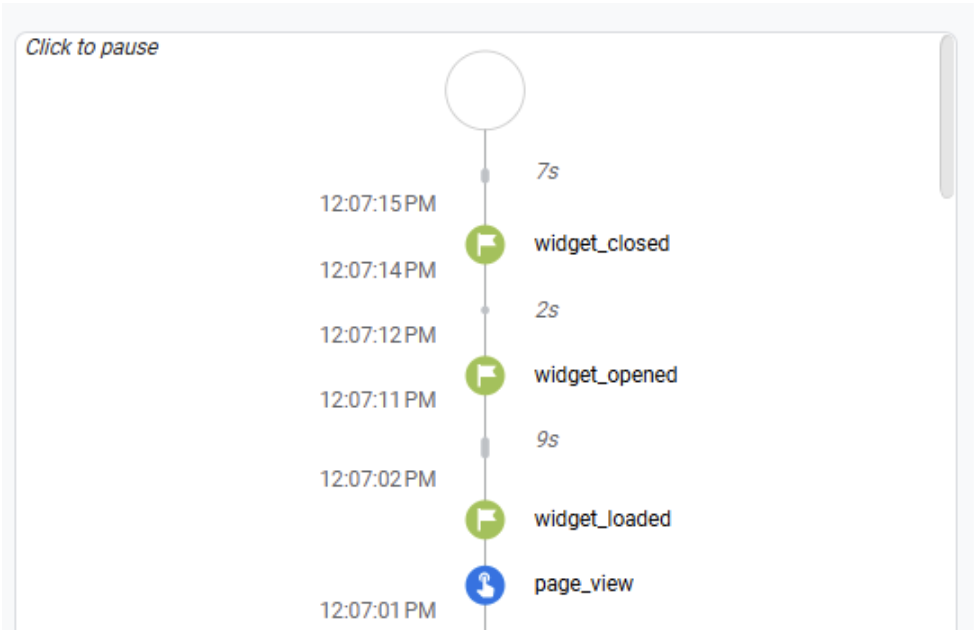
- Go to GA4 → Admin (gear icon, bottom left) → Data Display → DebugView;
- Trigger widget events on your site, using PreviewMode in GTM;
- Events should appear as blue hits in real-time.
Create Key Events (optional)
- Go to GA4 → Admin → Data Display → Events
- Click Create Key Event
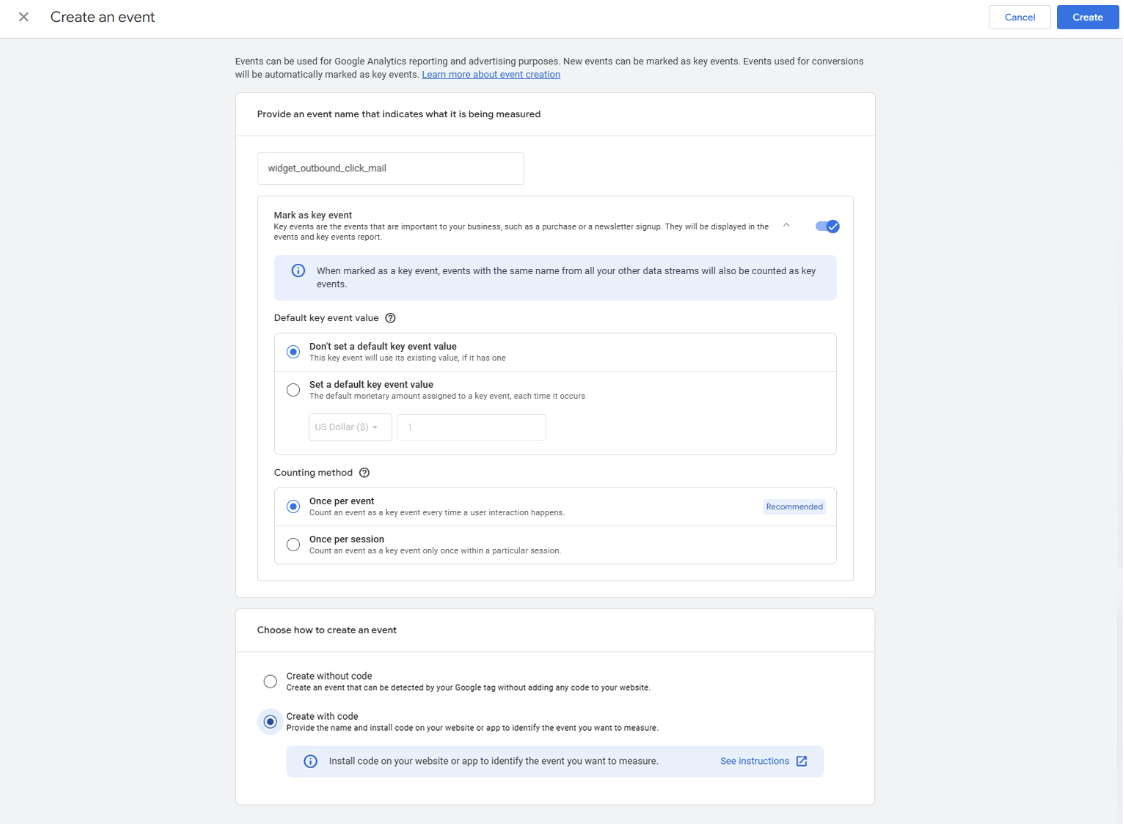
- Add the widget event, with the exact event name, to convert it from a regular hit (blue ball) to a key event (green ball) in DebugView.
Use events across multiple platforms
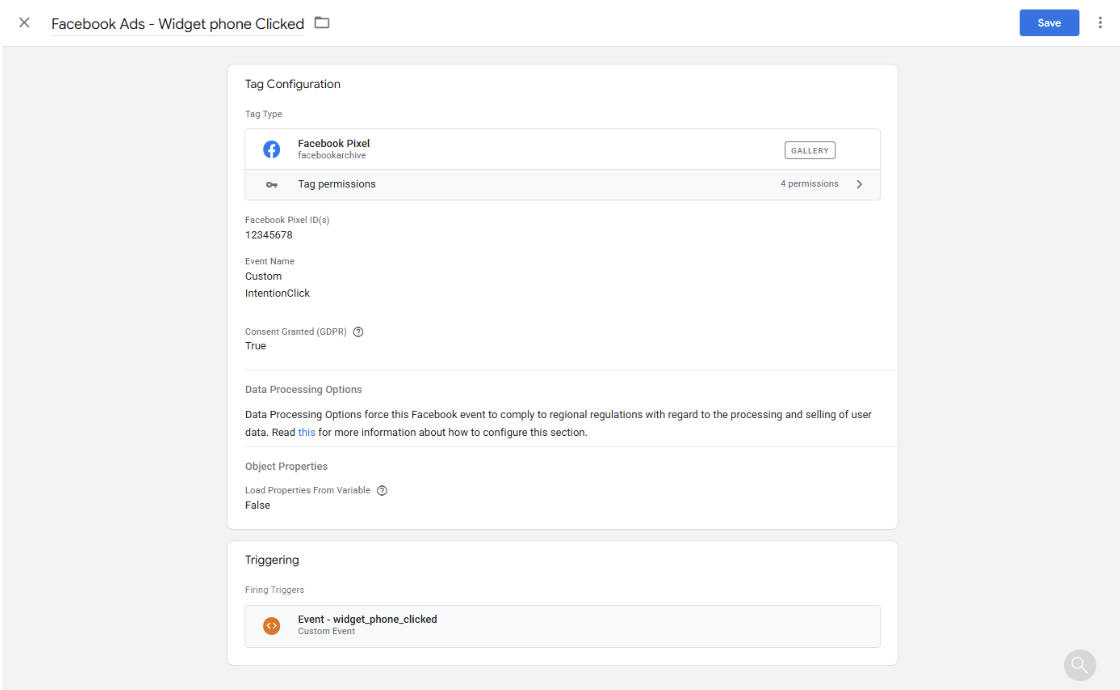
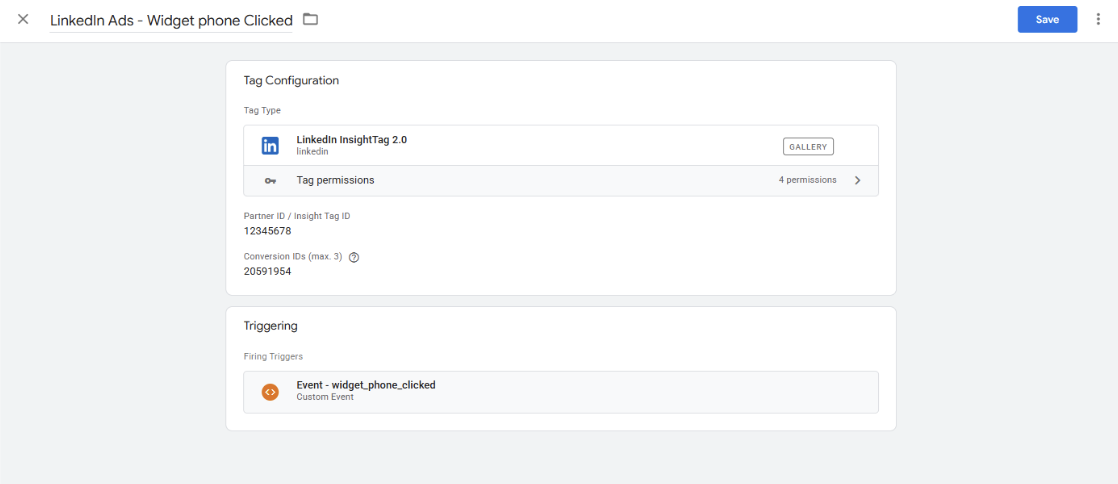
The widget events aren’t limited to GA4. The Custom Event triggers, made in point 5 can be used to fire all other conversion and event tags:- Google ads
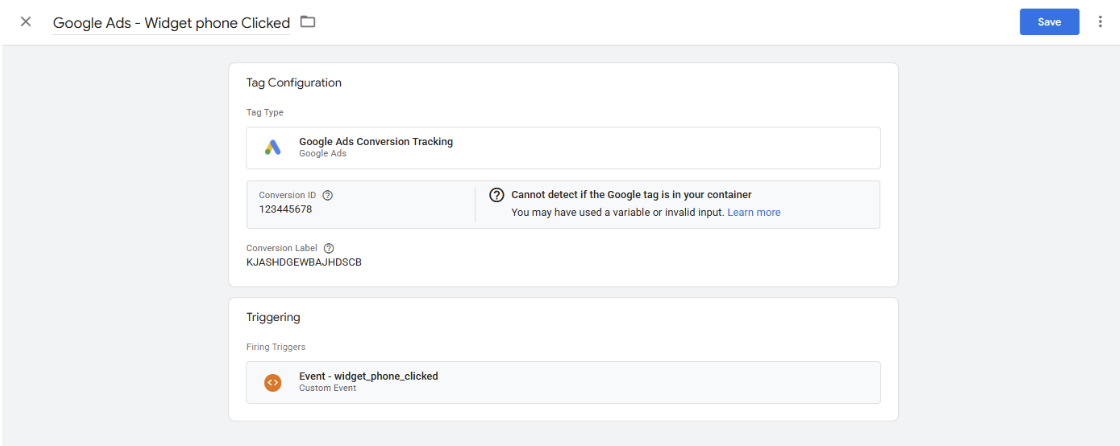
- Facebook ads
- LinkedIn ads
- Any other tag-based platform
How to use the Event Parameters
Each Widget Event has dedicated, built in Event Parameters, add them to all you analytics platform tags, like GA4, Matomo or HubSpot.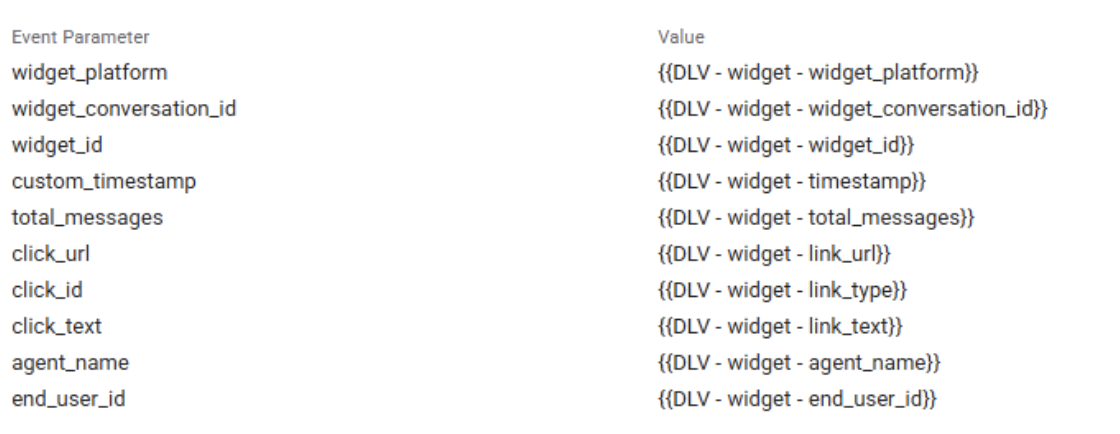
Conversion based tags (E.g. Google Ads, LinkedIn Ads, Microsoft UET Ads) do not benefit nor optimize using this information.
- In GTM, go to Variables → New.
- ChooseData Layer Variable .
- Enter the datalayer variable name, for example: widget_id.
-
Find these in the datalayer → same as event testing in GTM preview:
-
It should look like this:
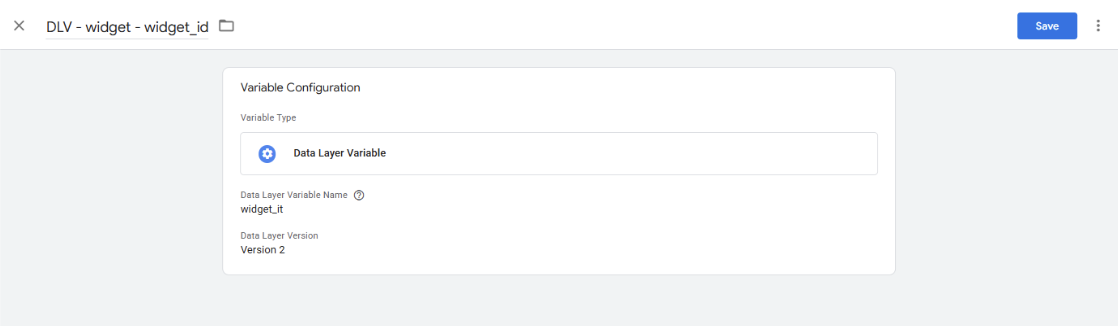
- Save.
-
Make all the other variables you need to measure, for example:

-
Add the individual Datalayer Variables to your Analytics tag, for example GA4:
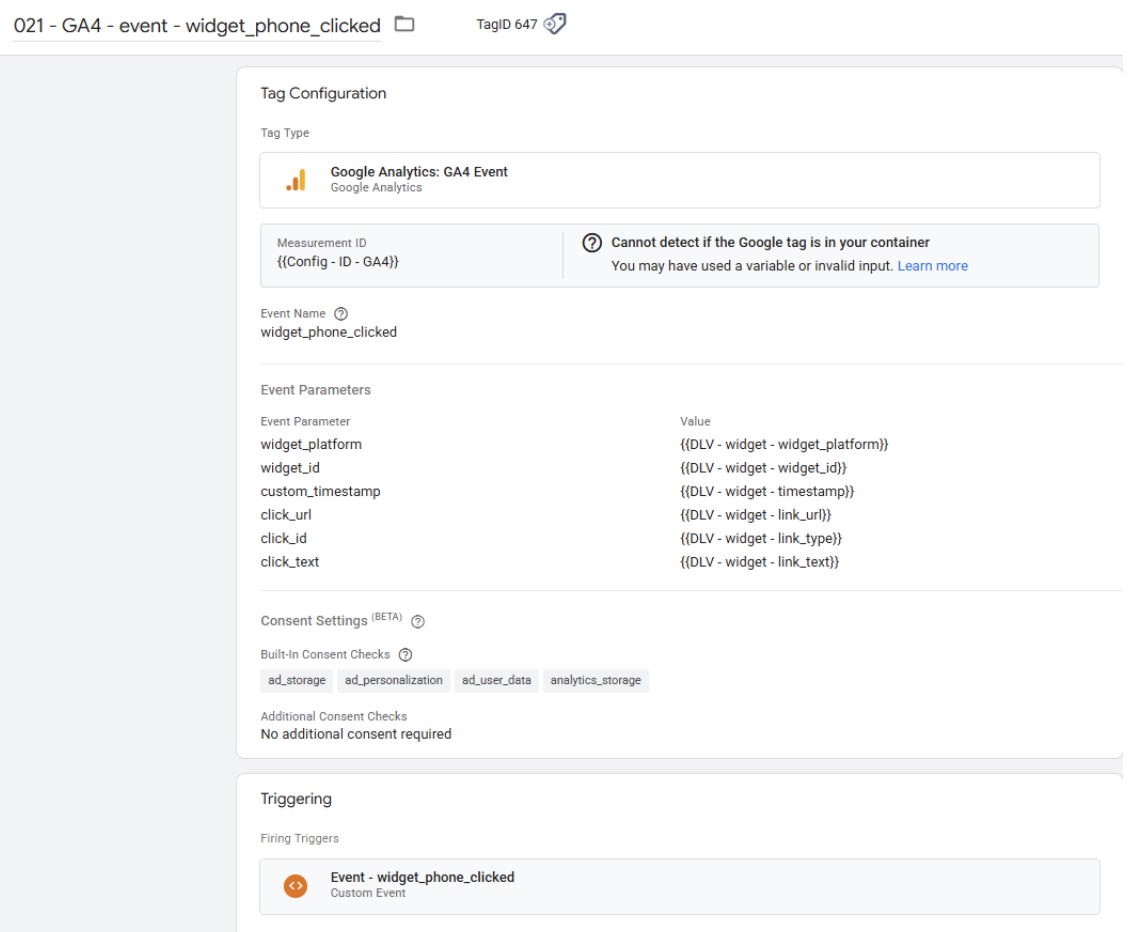
-
Find these in the datalayer → same as event testing in GTM preview: