New Conversations
All new customer messages appear in the New inbox. A badge next to New shows how many conversations are waiting to be picked up.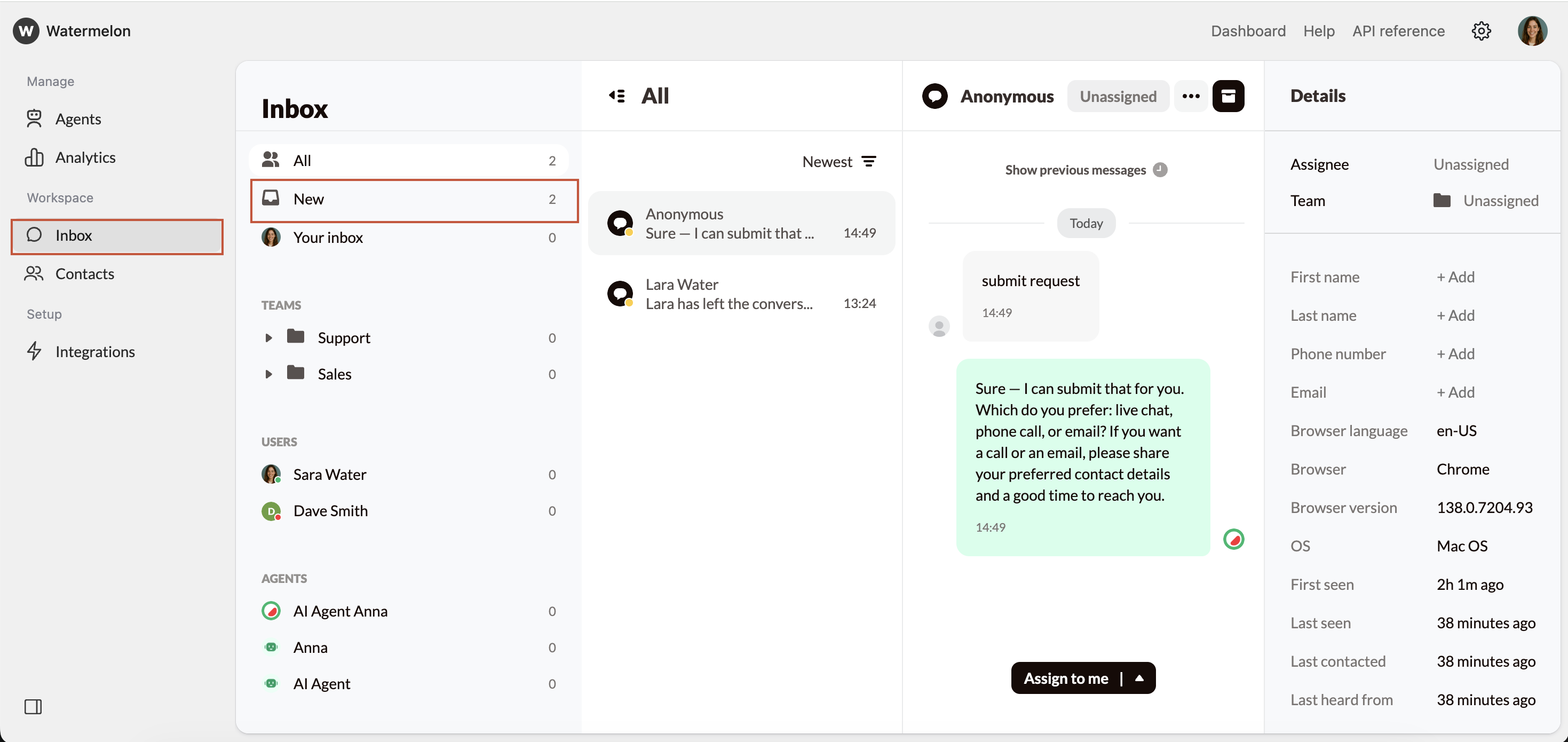
Picking up a new conversation
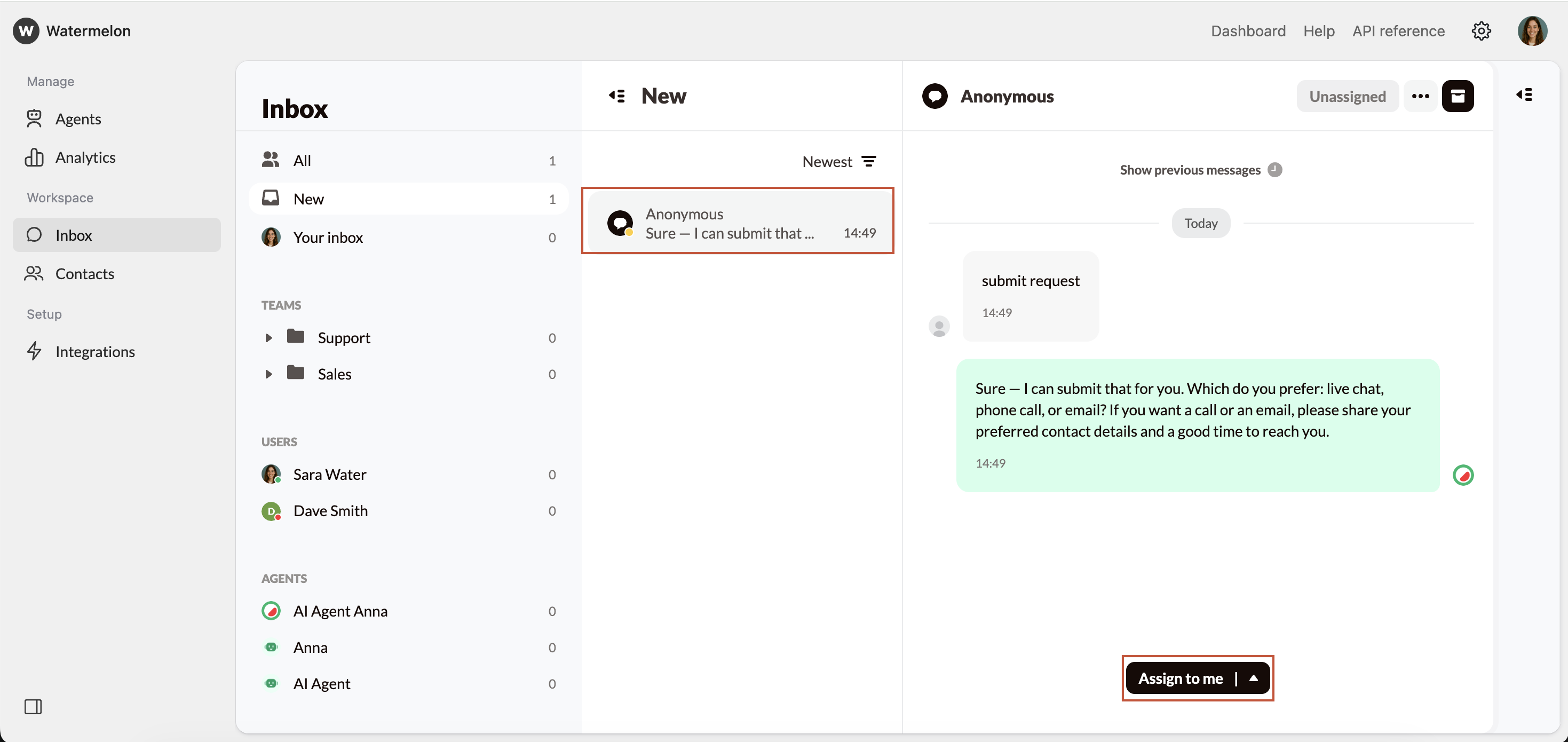
- Open Inbox
- Select New
- Click Assign to me to take ownership
Active Conversations
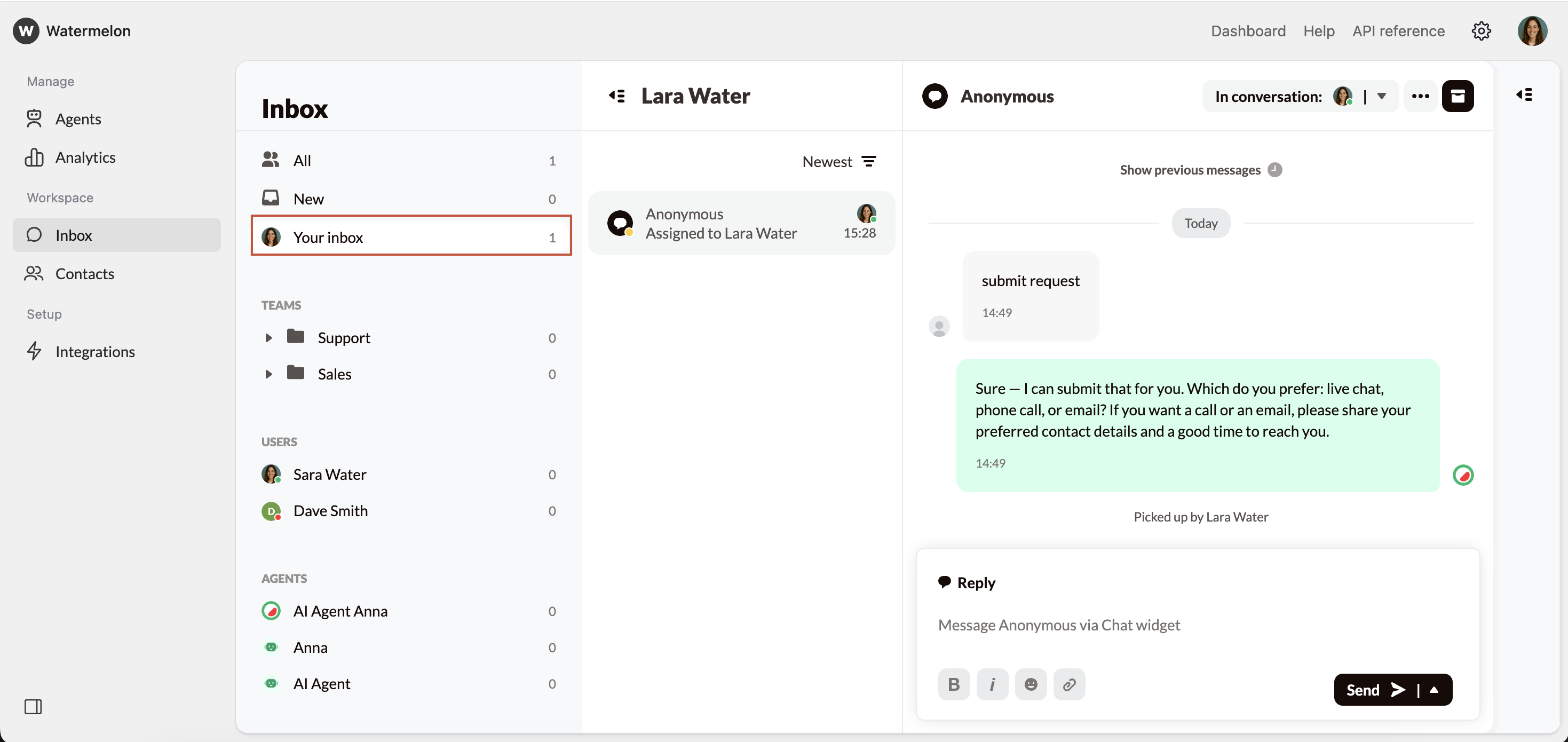
Your inbox contains all conversations that:- You picked up
- Someone assigned to you
- You took over from another agent
- Were transferred from an AI Agent
- Reply to the customer
- Customize your inbox view
- Forward to another user or team
- Add Notes to keep internal information
- Add Tags to help categorize the conversation
- Use Filters to organize what you see
- Take over a conversation already handled by another agent or the AI Agent
Replying to the Customer
When you’re in an active conversation, you can reply to the customer using the message bar at the bottom of the conversation. You can format your message with bold(1), italic (2), or emojis (3) to keep your communication clear and friendly. You can also upload files or images (4) directly into the conversation when you need to share documents, screenshots, or other attachments.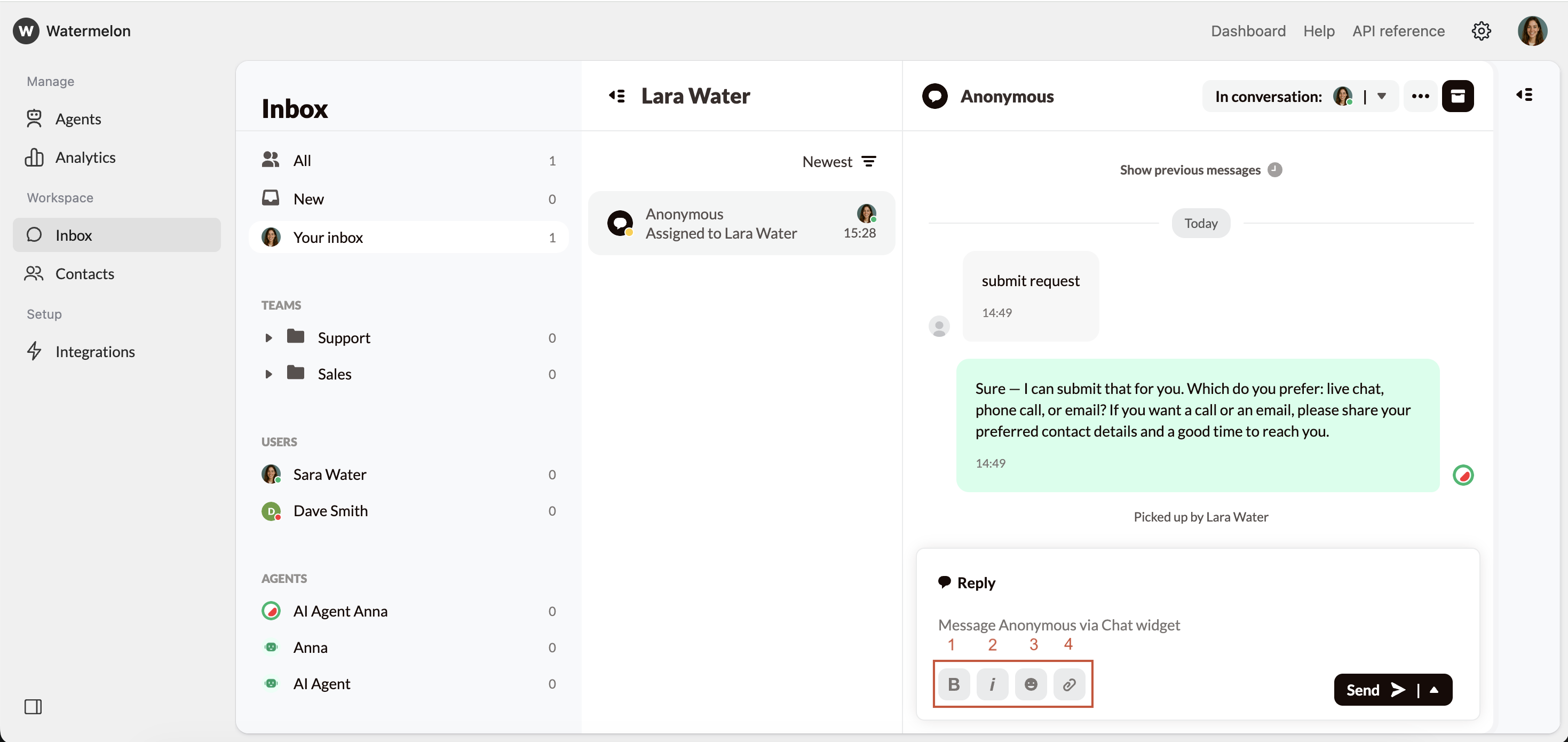
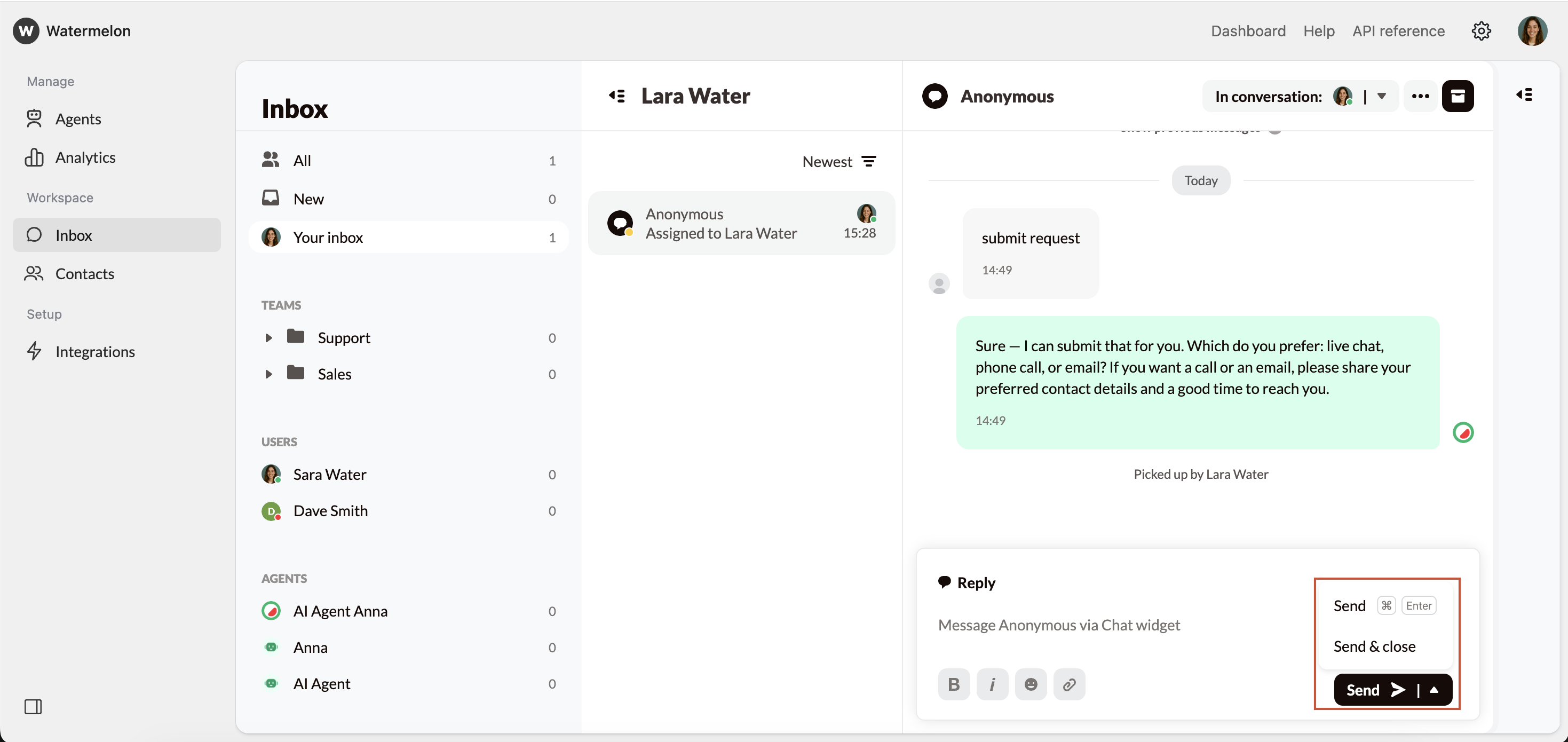
- Send — deliver your message and keep the conversation open
- Send & close — send your final message and immediately close the conversation
Notes & Tags
During an active conversation, you can add internal information using the Details Panel: • Notes: internal-only comments about context, follow-up items, or important details • Tags: labels that help organize, search, or categorize conversationsForwarding & Reassigning Conversations
If a conversation needs to be handled by someone else, you can:- Forward to another user
- Forward to a team
- Remove yourself from the conversation (returns it to unassigned)
Teams
If your company operates in teams (e.g., Support, Sales, Regions, or follow-up teams), you can manage conversations inside your team workspace: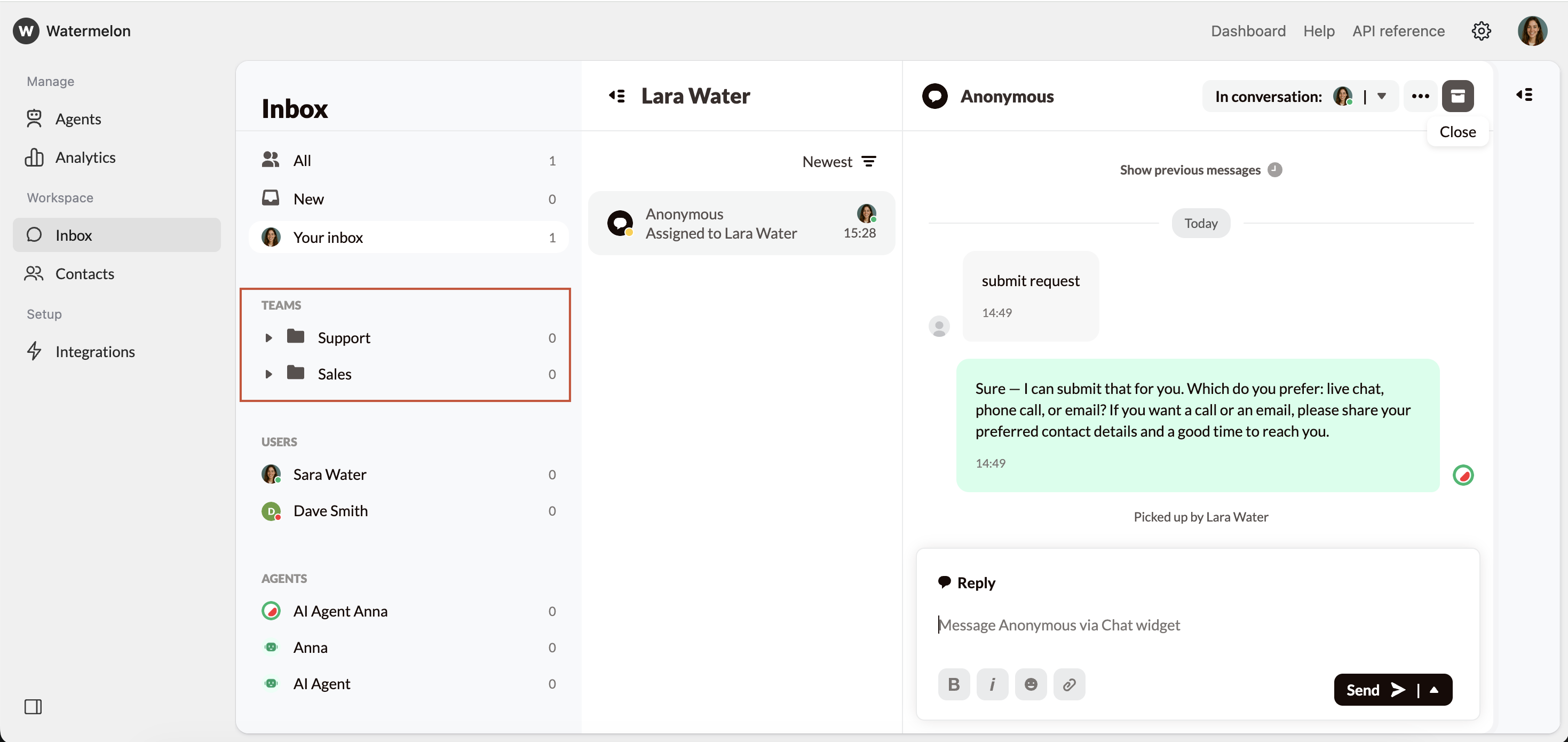
- Team → Unassigned: conversations waiting for someone in your team
- Team → My Conversations: assigned to you
- Team → All: visible toall team members
Closing Conversations
When you’re finished helping a customer, close the conversation to complete the lifecycle by clicking Close conversation above the conversation screen.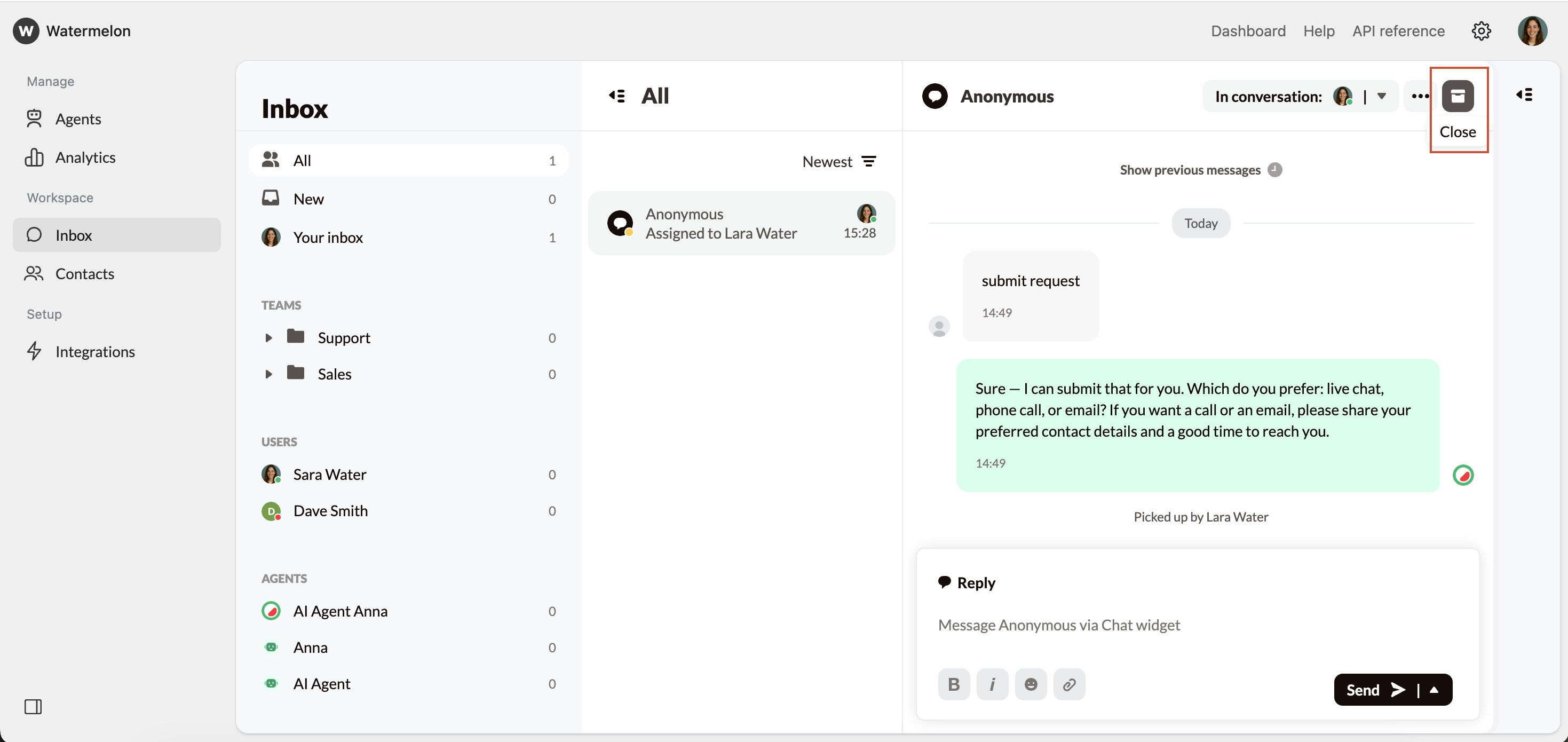
- Save the conversation
- Update your analytics
- Move the conversation out of your active inbox
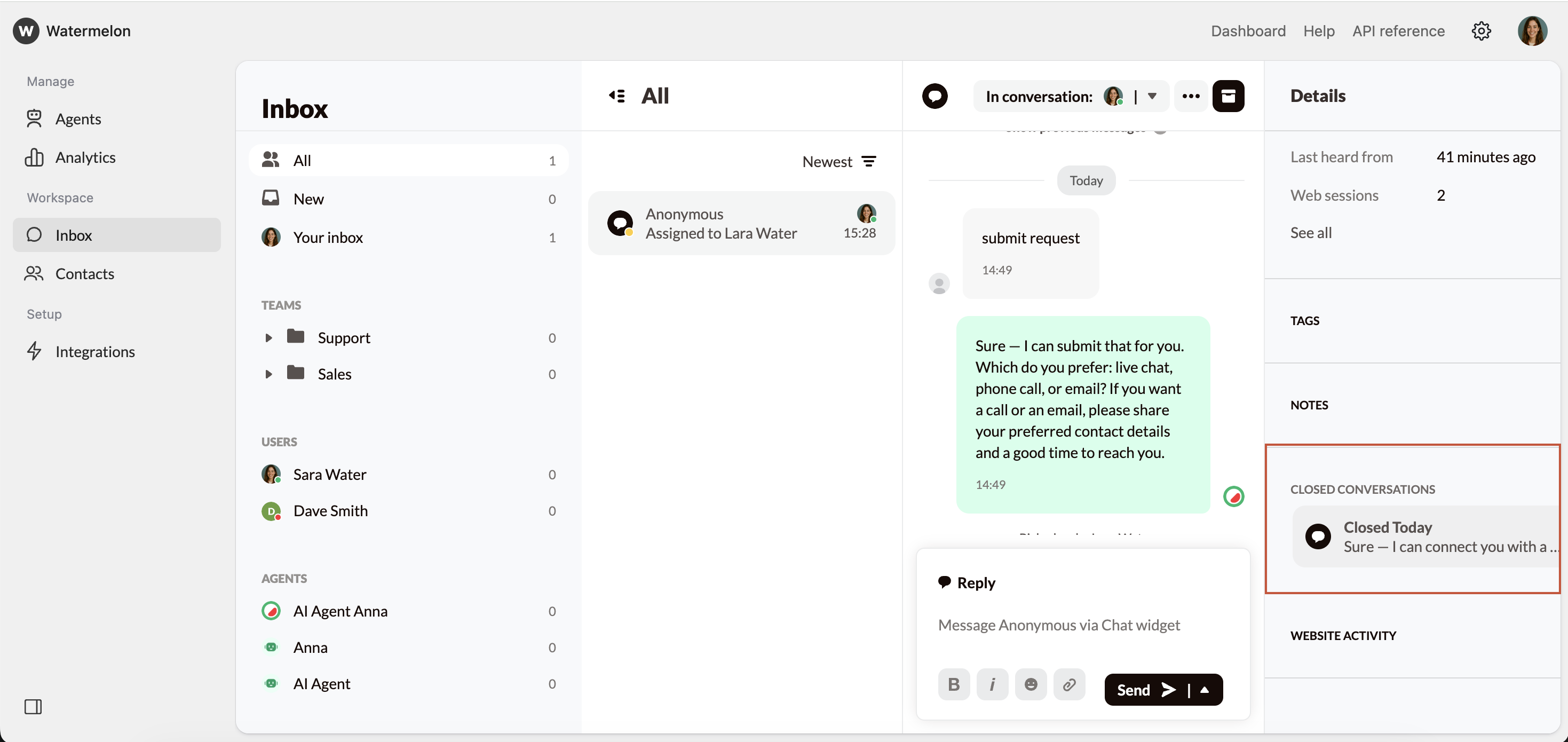
Where to Find Closed Conversations
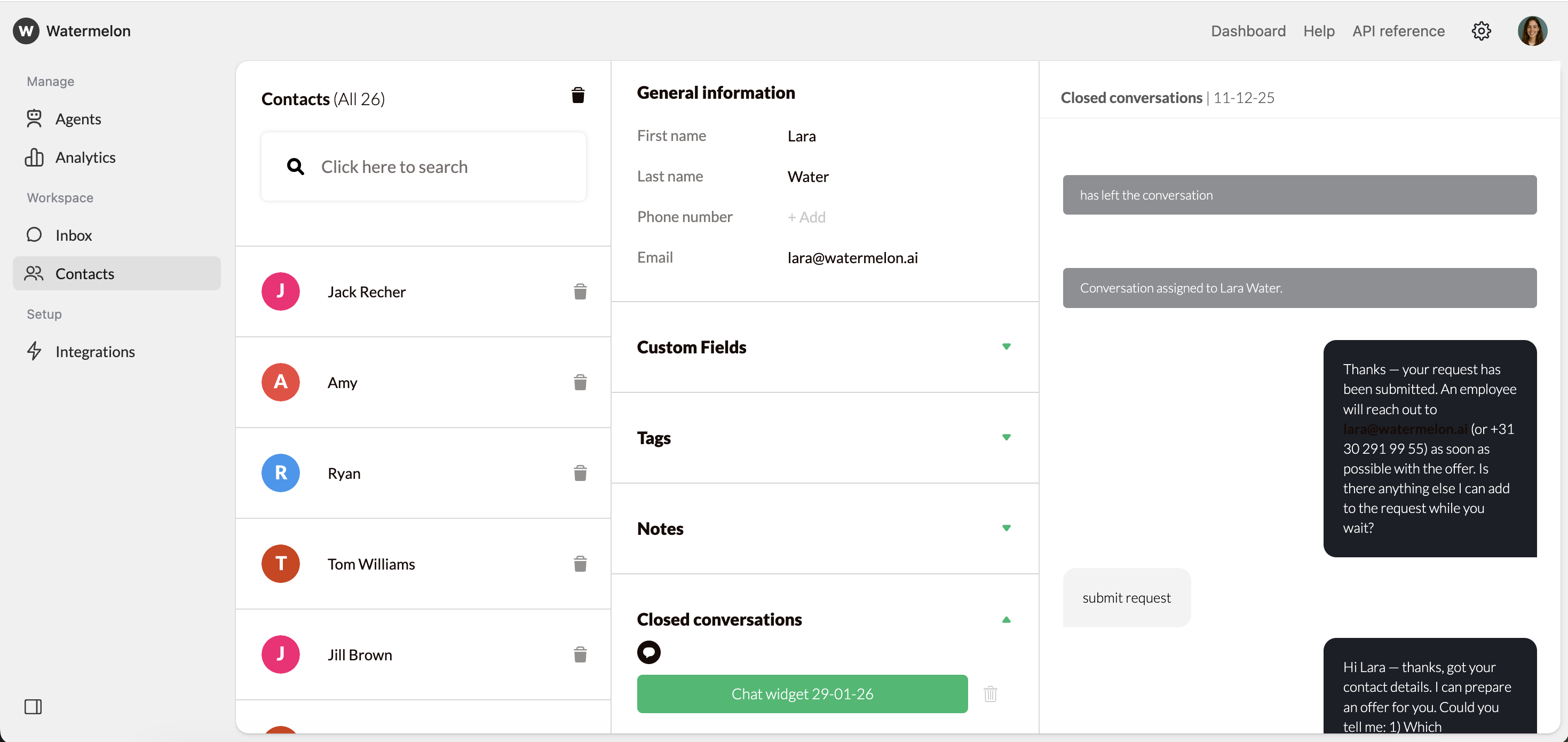
Closed conversations are stored under Contacts. To view a closed conversation:- Go to Contacts
- Search for the customer
- Open the contact
- Select Closed conversations
- Click a Date to view the full conversation
What information is needed to store closed conversations?
- Instagram, Facebook, and WhatsApp automatically include the needed contact data
- Website widget conversations appear once the customer submits their details
Deleting Conversations & Data
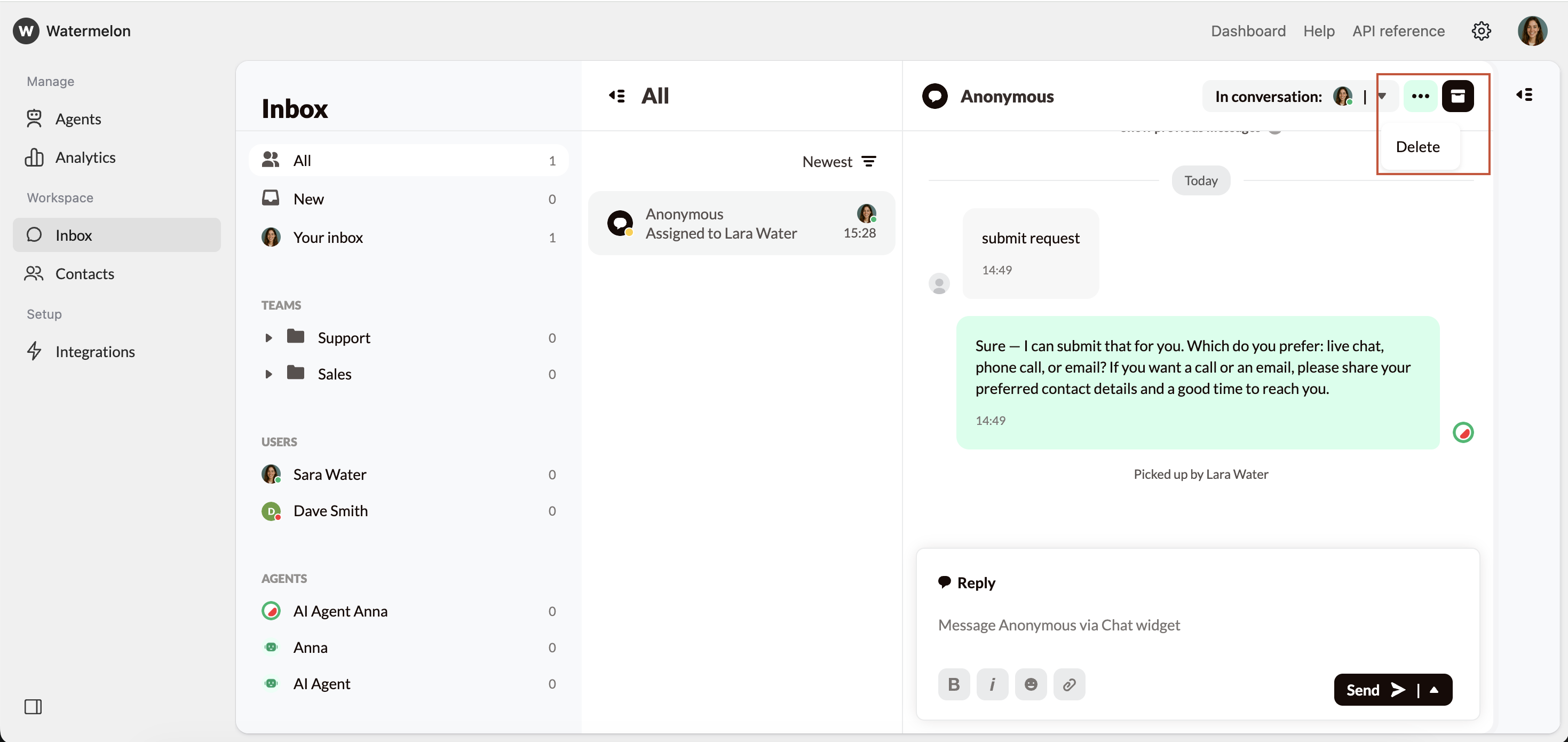
You may want to delete conversations to keep Watermelon tidy or for privacy compliance. To do this from Your Inbox:- Open the conversation
- Click the three dots
- Choose Delete
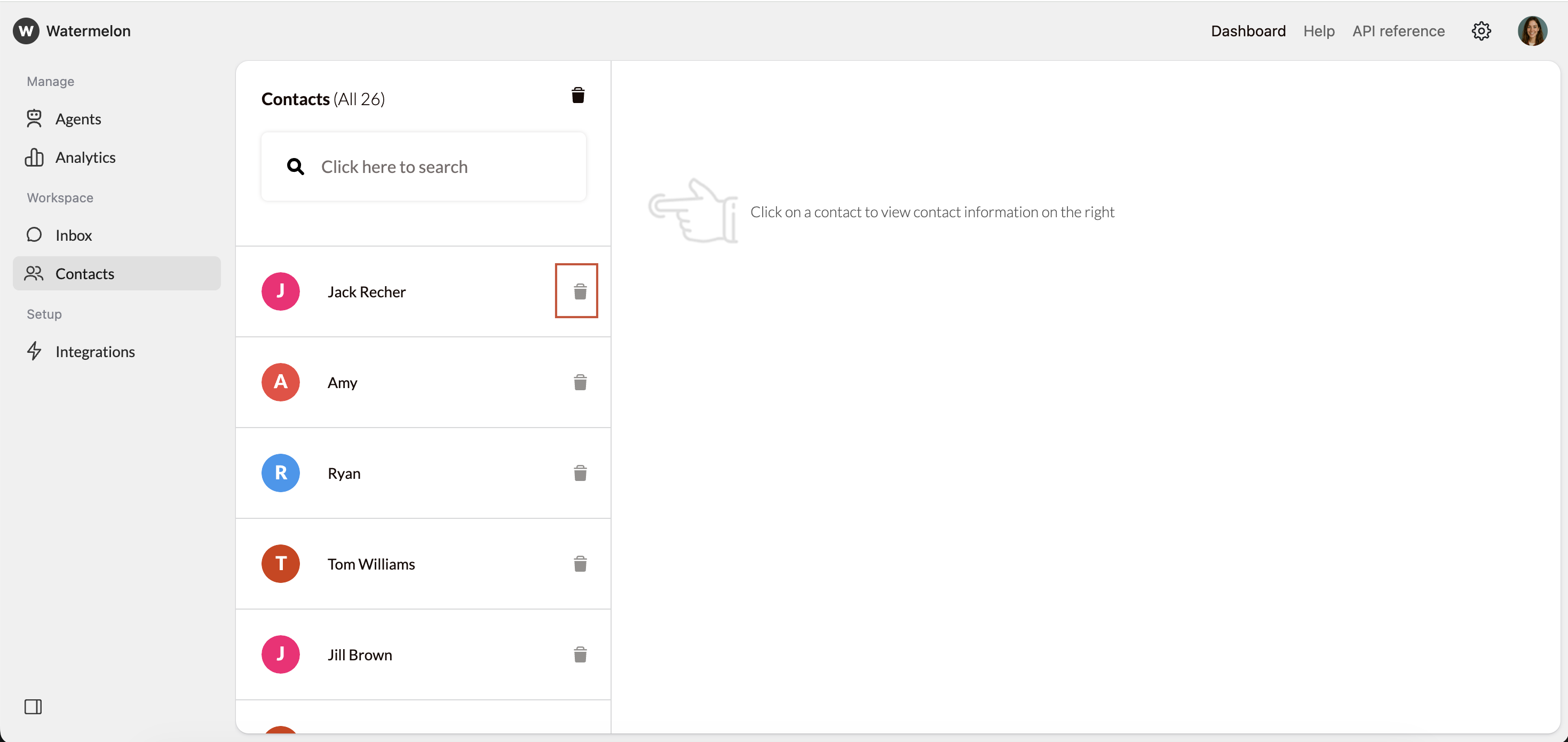
- Go to Contacts
- Find the customer
- Click the trash can icon
- All conversations
- All associated contact information
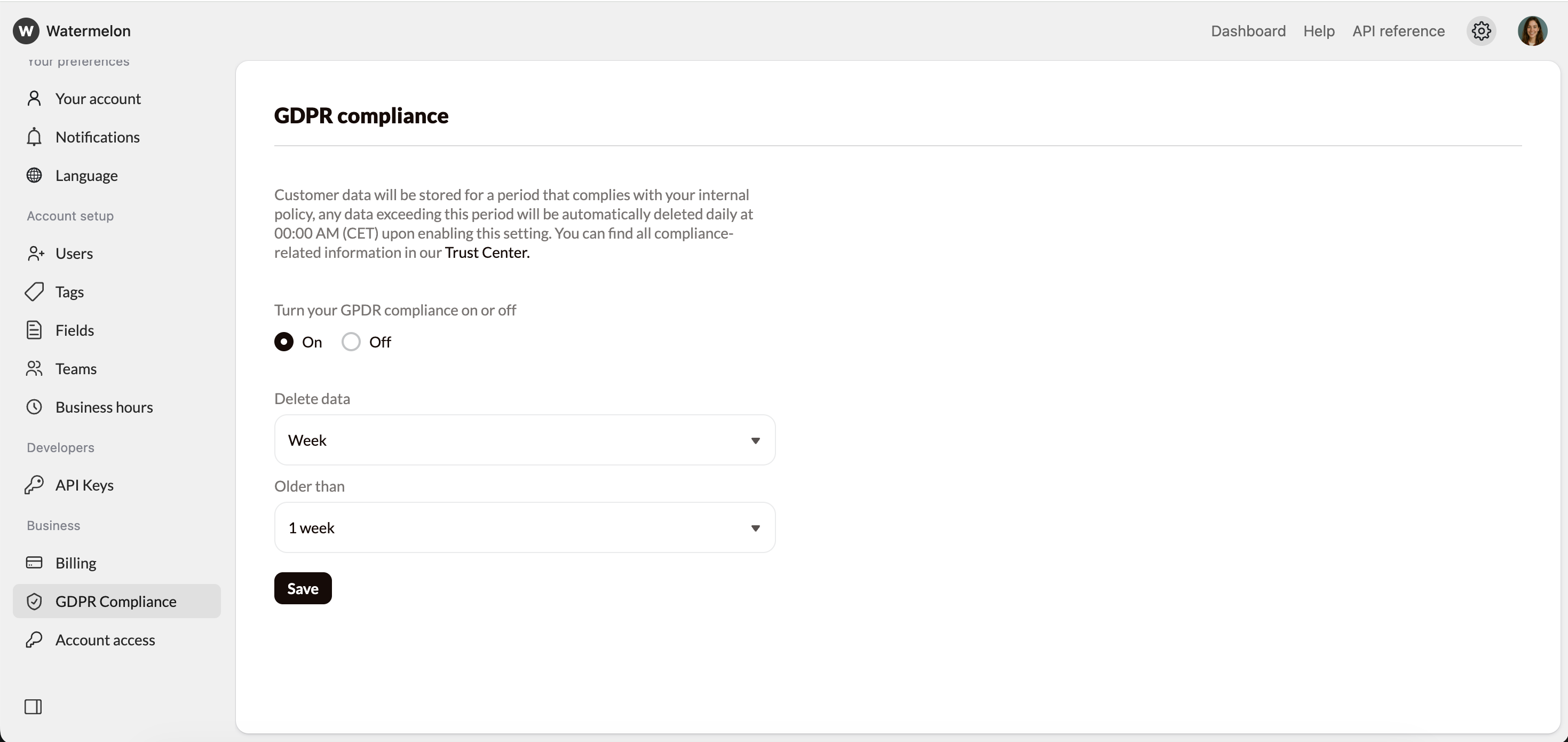
- Settings → GDPR compliance
- Toggle On GDPR Compliance
- Select a timeframe to delete (week, month, year) and how long to wait before deleting.
- Click Save