

Enabling Human handover
If you want to enable automatically forwarding conversations to your employees; set up Human handover in your Agent. Go to Human handover at Activate to do so.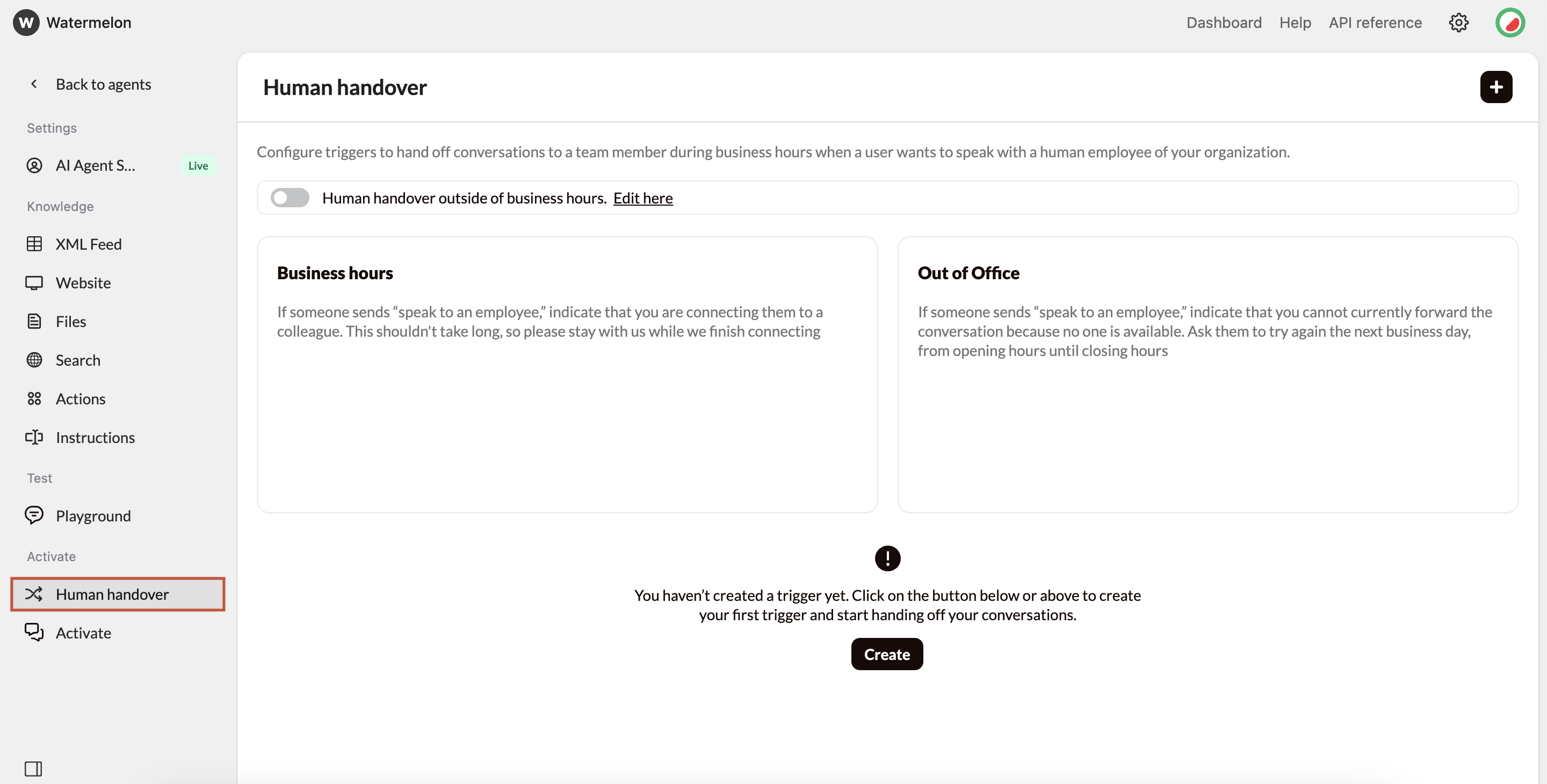
Handing off outside business hours
You can decide if you want to hand off messages outside business hours by using the toggle at the top of the screen. If you enable this, forwarded messages outside of opening hours will still be sent to the designated inbox. By default this functionality is turned off, so the Agent will not forward messages outside opening hours. You can amend your opening hours by clicking Edit here.
Setting up Human handover
Create trigger
Start setting up your Human handover by creating a trigger. To do so, click on the button Create.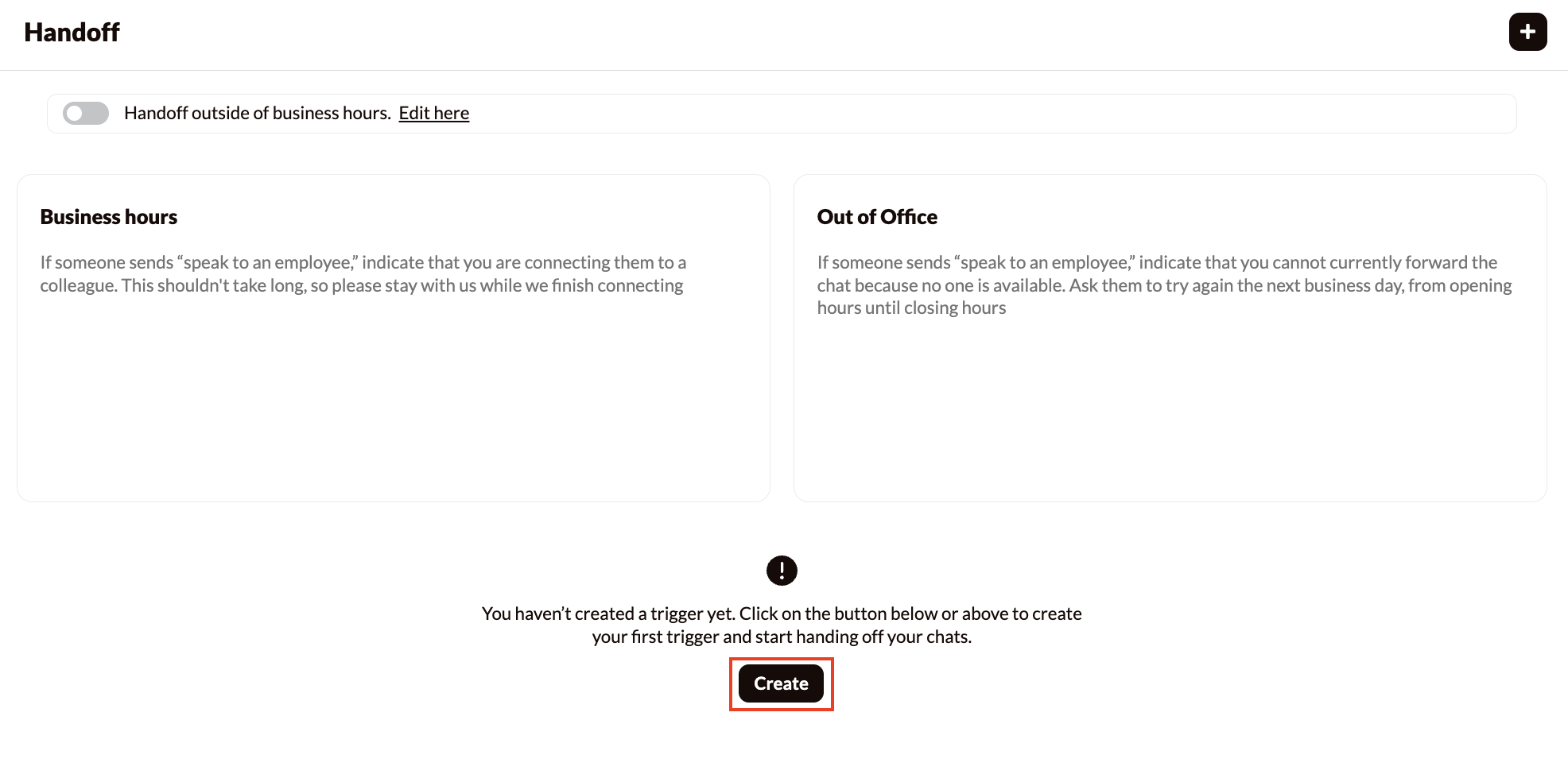
Create a trigger sentence
Triggers are words or phrases that prompt the AI Agent to hand off a conversation. Examples of triggers:
- Can I speak to an employee
- I want to request a quote
- I want to speak to Pete
- Can I file a complaint
Assign conversation
Decide to which inbox the conversations should be forwarded. Choose New for all employees to pick up the conversation, Team for members of a specific team to be able to pick up the conversation or a specific Person.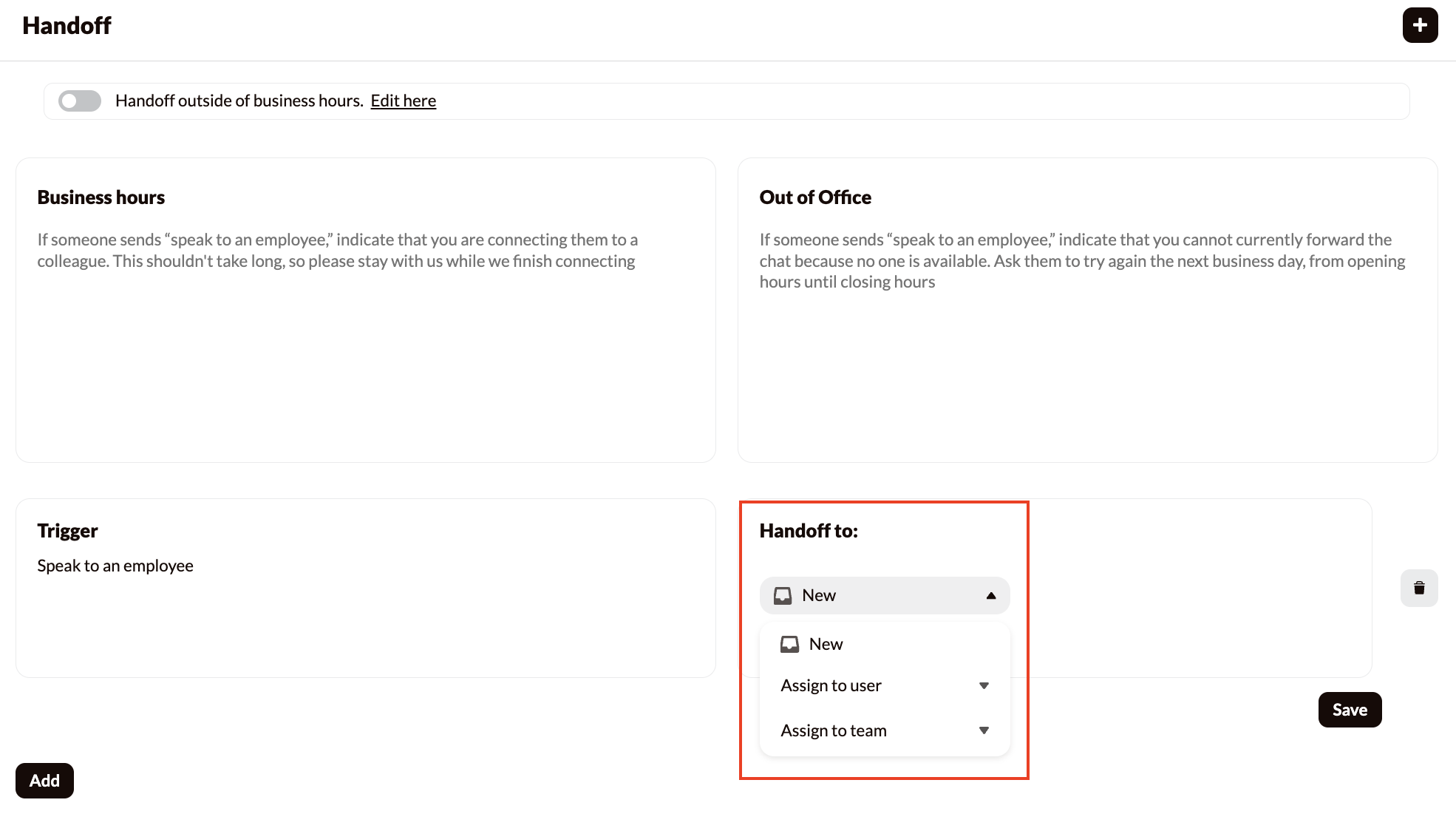
Set up Human handover messages
Add instructions to tell the AI Agent what to do during a Human handover. These instructions can include a message that the AI Agent sends before a human agent takes over the conversation.Example of instructions:
-
During working hours
If someone wants to speak to an employee, let them know you will connect them and that it may take approximately 1 minute for a response.
-
Outside working hours
_If someone wants to speak to an employee, inform them that Human handover_is currently unavailable because no colleagues are available. Advise the end user to send an email or try again during work hours.
Test handover triggers
Conversation forwarding only works in the live environment of an AI Agent. In the Playground, you can check how the AI Agent responds to a trigger, but conversations are not actually forwarded to the inbox.If you want to test the handover triggers, it’s best to test on a test website.
How Human handover looks visually
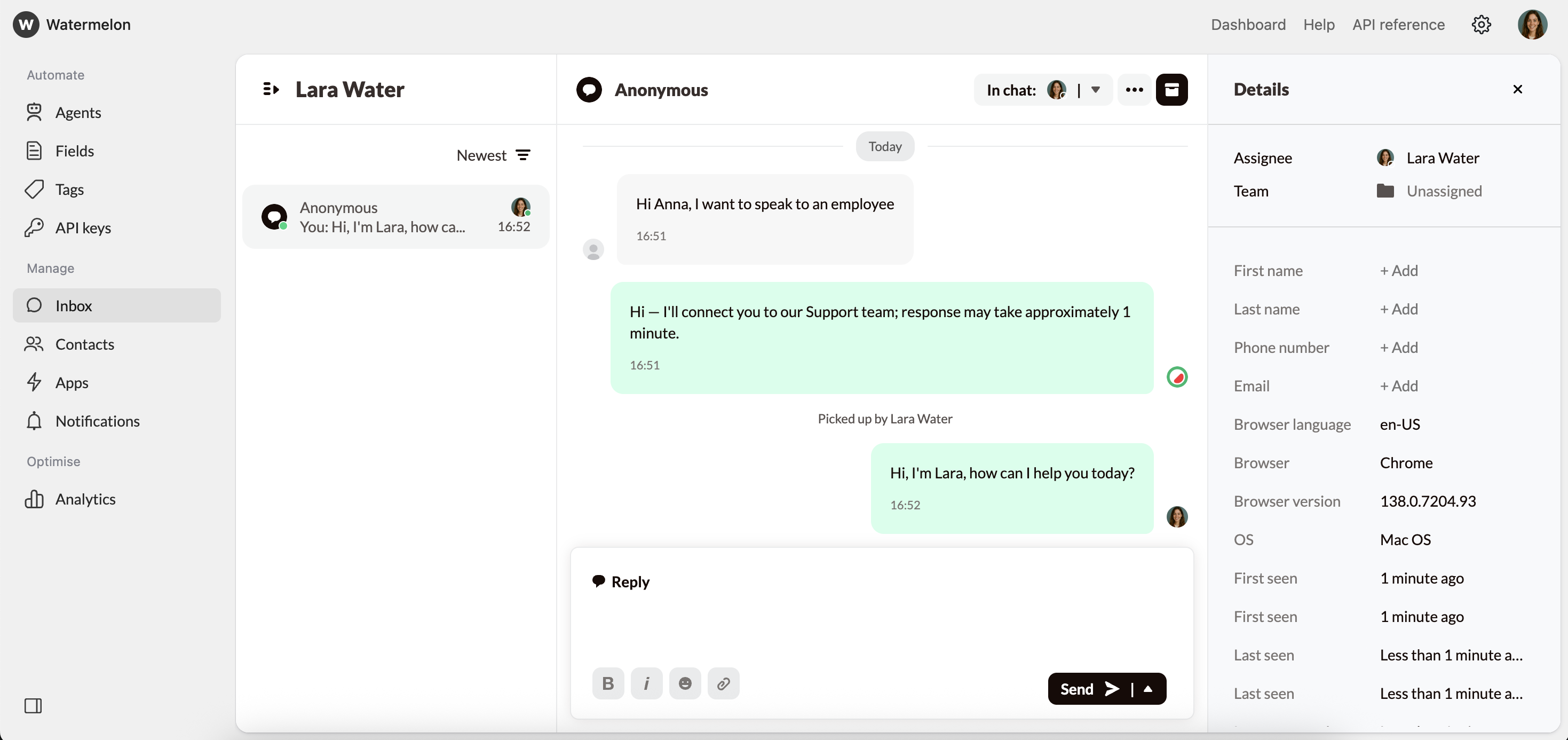
In the Chat Widget, it is visible when a conversation is handed off and which colleague is handling the conversation. Via other channels like Facebook Messenger and WhatsApp, the customer cannot see this. See below an example of a handed off conversation.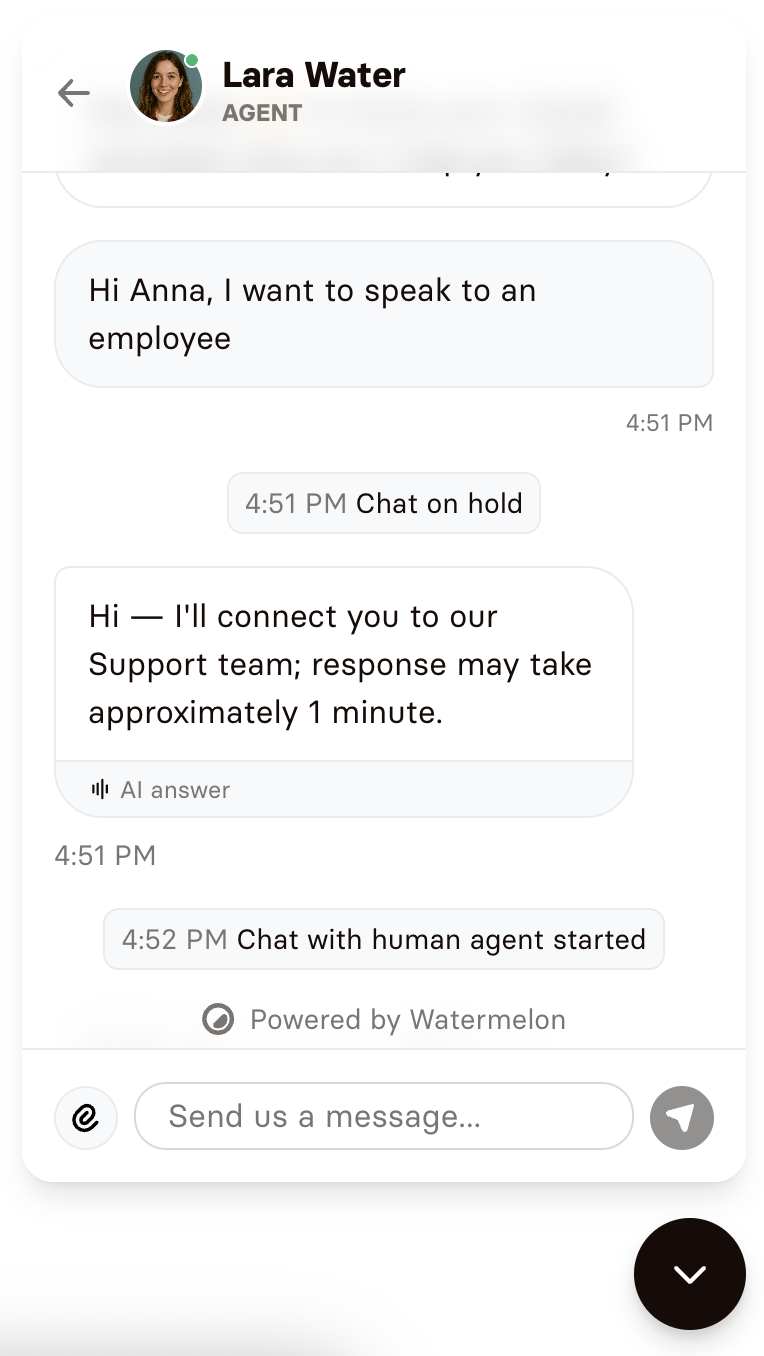
Problem solving
Agent doesn’t hand off the conversation
If the AI Agent doesn’t hand off a conversation, there could be several reasons:- Trigger mismatch: The end user’s request to be handed off was formulated differently from the set trigger. For example, the user says “I want to contact Piet” instead of “speak to a staff member.” In this case, add an additional trigger to cover this.
- Context missing: Ensure that the trigger matches the words and/or context of the end user’s request. The AI Agent can recognize context, so an exact match is not always required.
Agent says the conversation is being handed off, but nothing appears in the inbox
When an end user requests to speak to a staff member, the AI Agent may respond correctly but not actually hand off the conversation. This can happen if:- Human handover is not correctly configured: Check whether the trigger is set to hand off to the correct inbox.
- The trigger is missing: The AI Agent responds politely based on its personality settings but lacks a trigger to initiate the actual Human handover.
- If you want to hand off: Add a trigger with the words the AI Agent should recognize.
- If you don’t want to hand off: Add an instruction specifying how the AI Agent should respond without handing off. For example: “When someone requests to have their query handled by a staff member, ask them to send an email with their request.”
Message sent by the AI Agent before the Human handover seems incorrect
The instructions may not align well with the set triggers, resulting in unclear or inaccurate messages from the AI Agent. Example:- Triggers: “speak to a staff member” & “contact customer service”
- Instruction: “If someone asks to speak to a staff member, let them know you are handing off the conversation.”