Using Filters to Customize Your View
You can use the preset filters to control which conversations to focus on. For example, you can choose to:- View only your assigned conversations under Your Inbox.
- Focus on unassigned chats in your Team Inbox.
- As an Administrator, check AI Agents or Users to monitor activity across your organization.
- Sort Oldest first within Your Inbox to make sure no customer waits too long for a reply.
- Sort Newest first in Unassigned Conversations to see what’s just come in.
- View AI Agent conversations sorted Alphabetically to track performance per contact.
Sorting Conversations
In addition to filters, you can change how conversations are ordered in your Inbox. Sorting helps you quickly identify the newest messages, oldest open chats, or organize your list alphabetically. To sort conversations:Open your Inbox
Navigate to your inbox and select which box you would like to view (All, New, Your Inbox, or a Team inbox)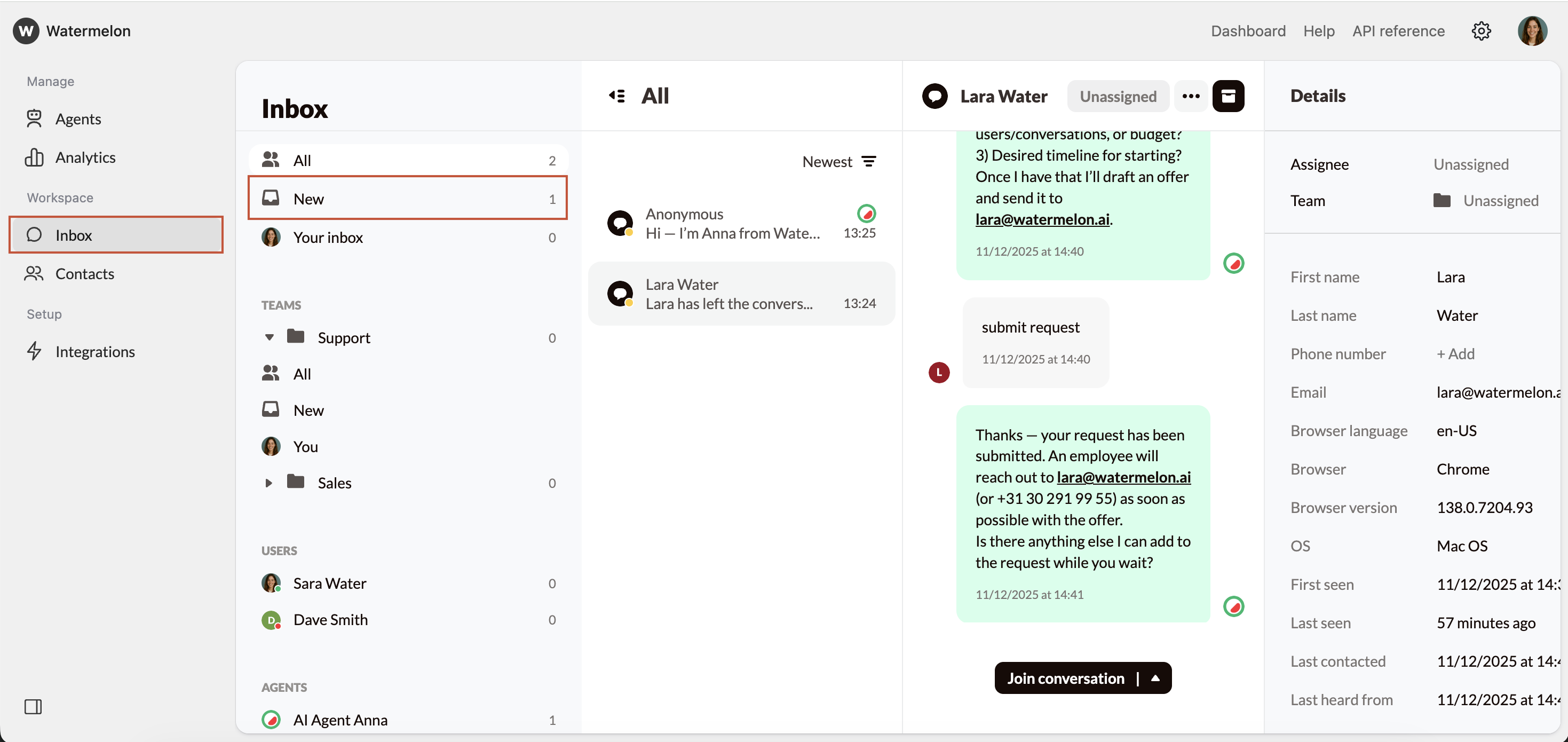
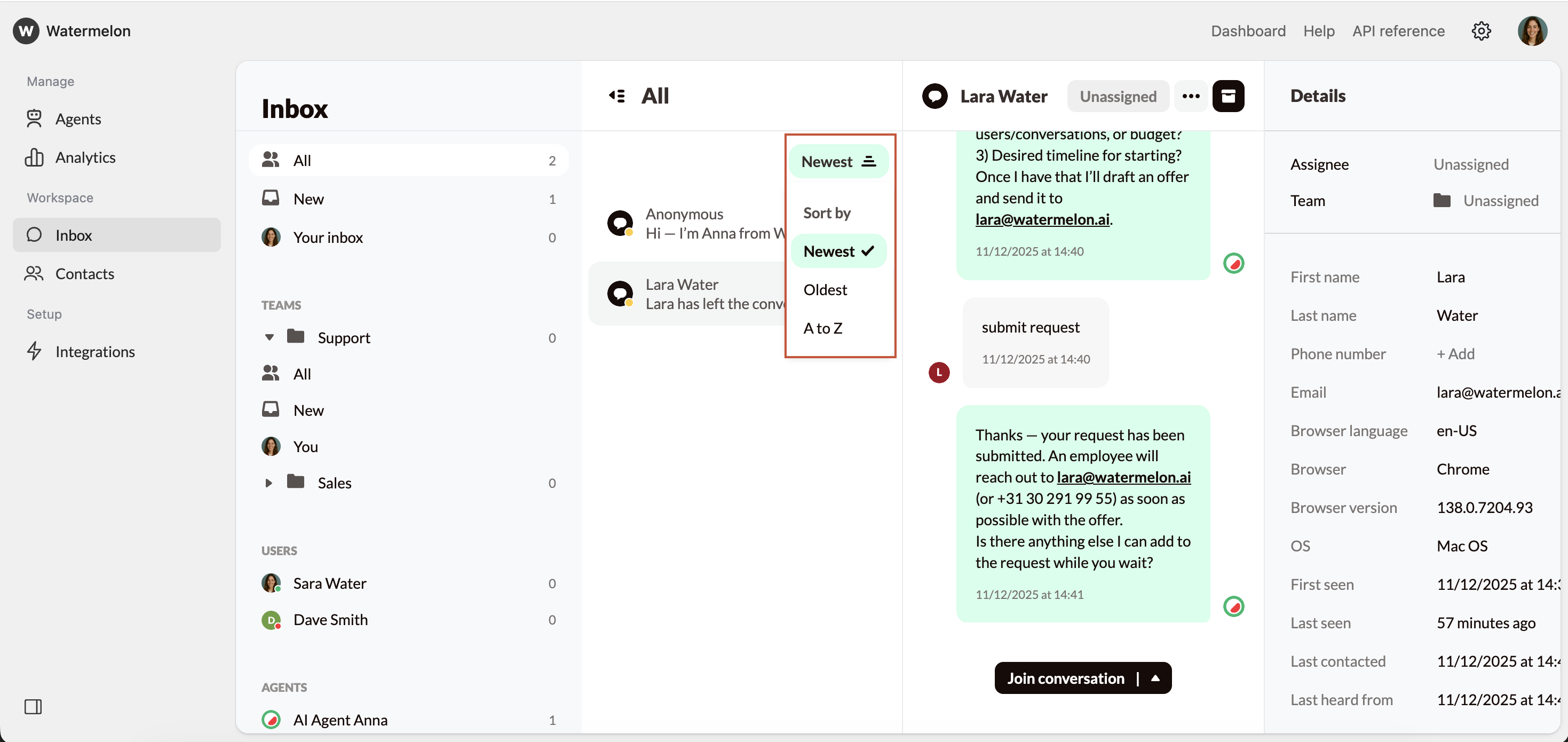
Sort By
Choose one of the available options:• Newest: Sorts conversations from newest to oldest.• Oldest: Sorts conversations from oldest to newest.• Alphabetically (A–Z): Sorts by the customer’s name associated with each conversation.Sorting gives you a quick way to prioritize work, whether you want to respond to the latest messages first or clear out older ones waiting longest for a reply.
Arrange Panes
There are several menu panes in the Inbox view which can be shown or hidden to suit your preferences.Show/Hide Main Menu Pane
You can show or hide the Main Menu using the button in the bottom left corner.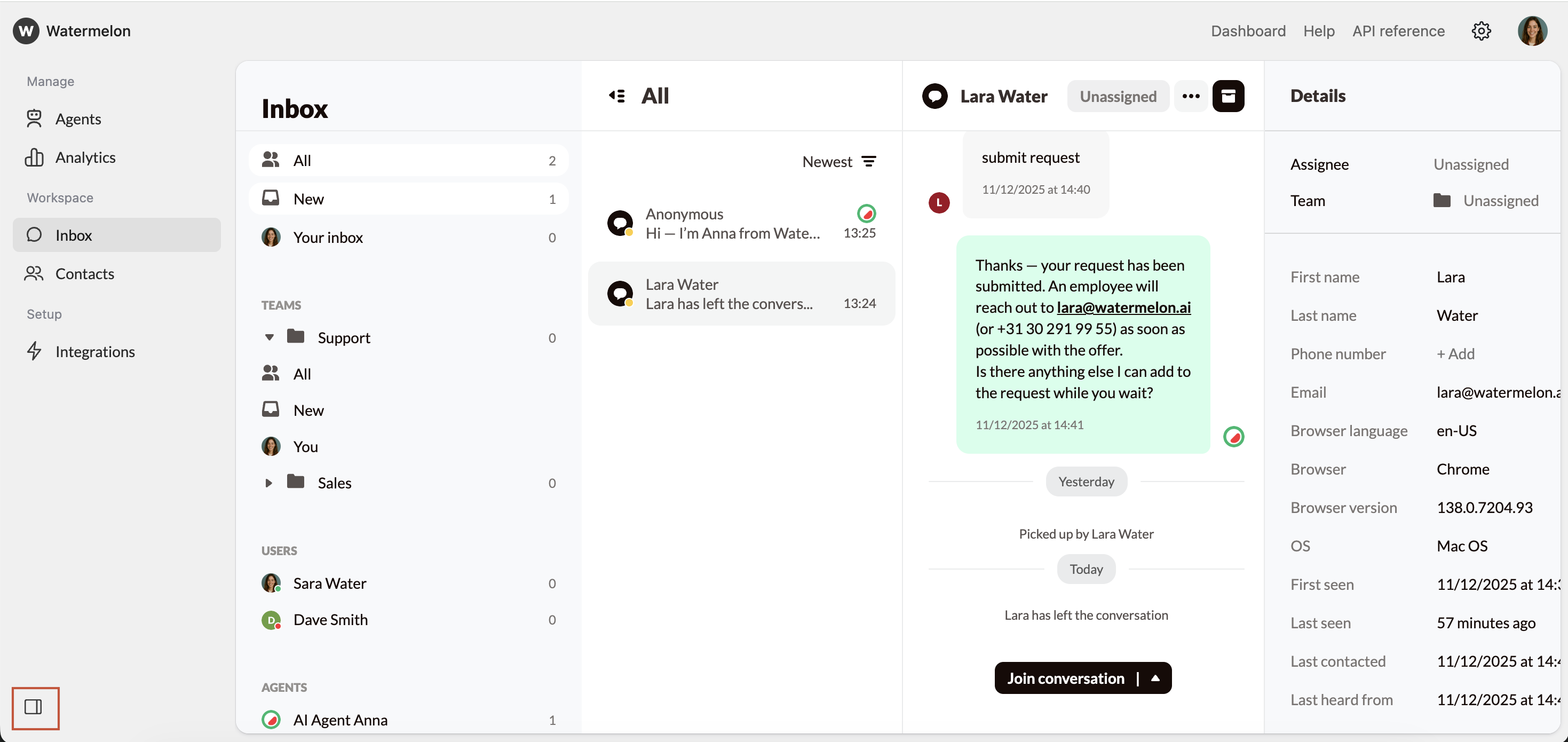
Show/Hide Inbox Pane
You can show or hide the Inbox Filters Pane using the button in the top left of the Conversations Pane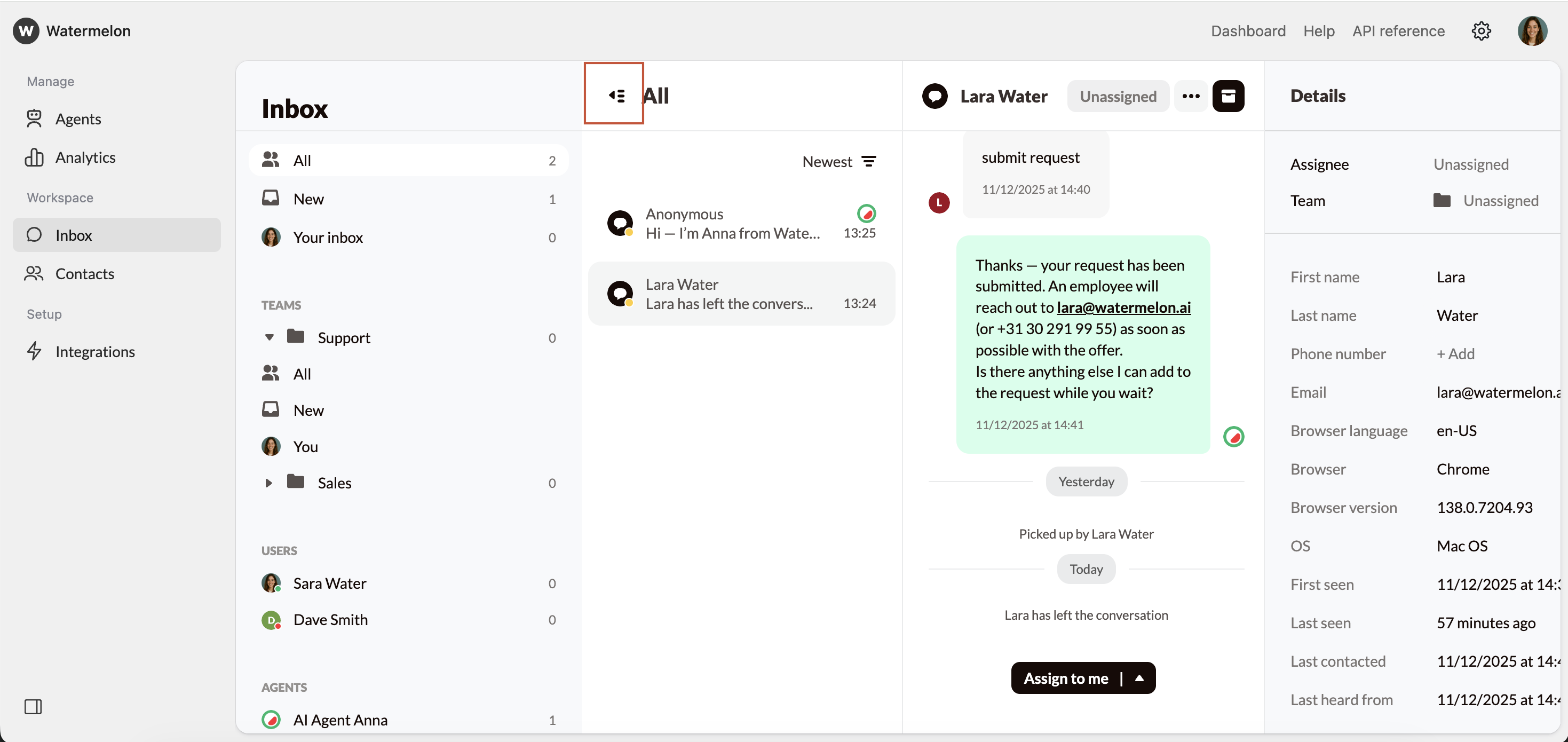
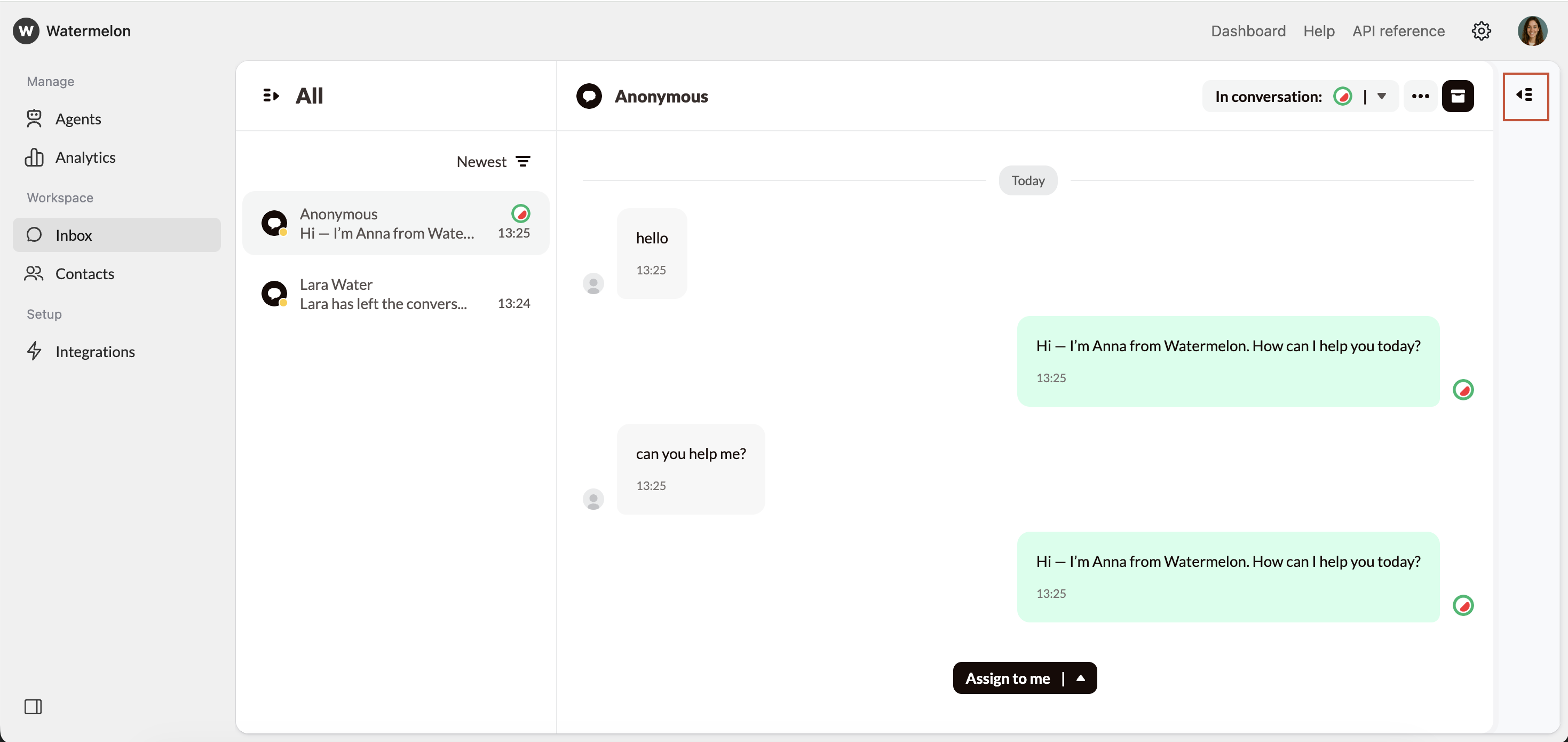
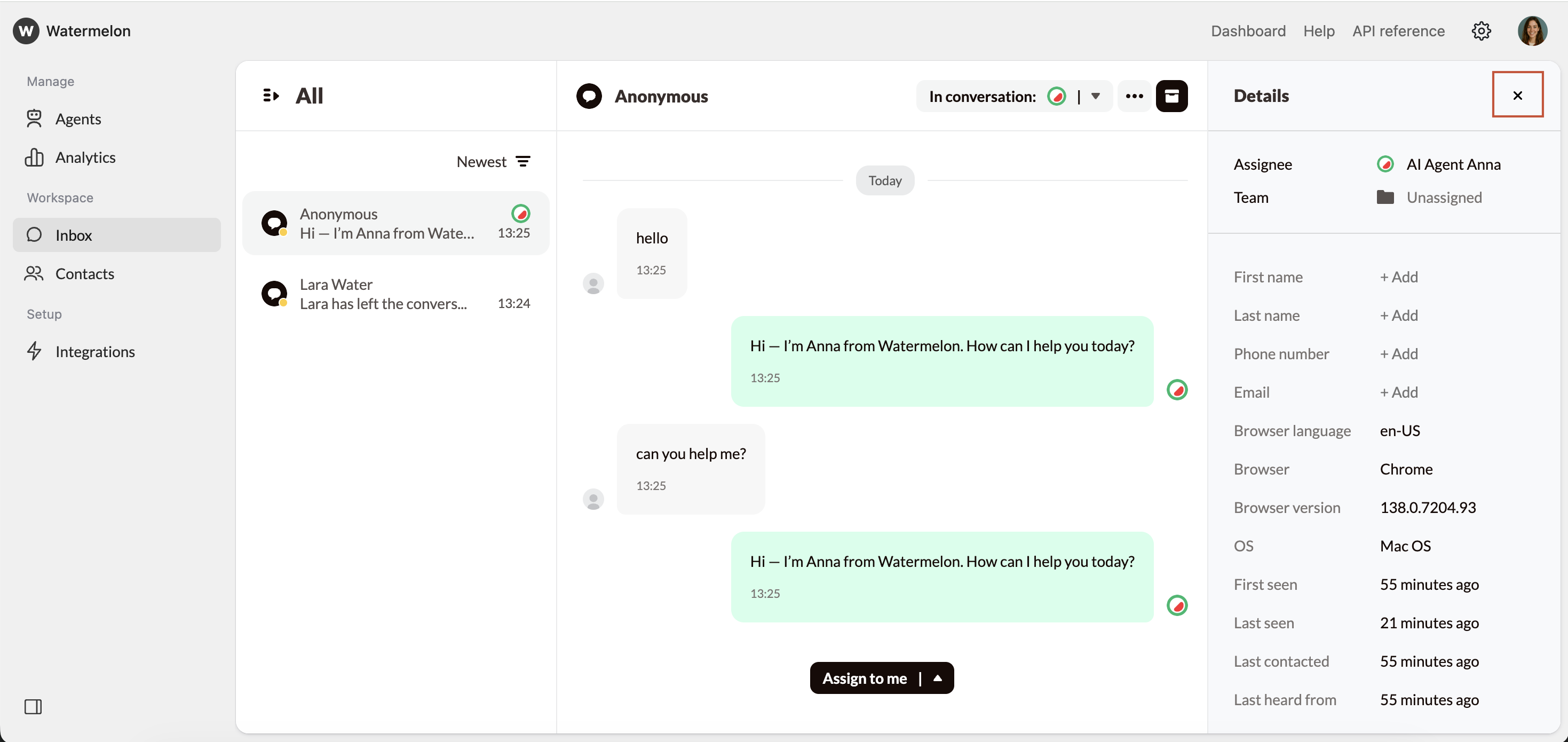
Show/Hide Details Pane
You can show the Details Pane for the selected conversation using the button in the top right of the Conversations Pane