Tags
At Tags in Watermelon you create, edit, and organise tags for your conversations. You can think of tags as digital sticky notes you attach to conversations. They help you quickly see what a conversation is about. Use them to group conversations by product or topic, automate tagging based on content, and analyse tags in Analytics to spot trends and opportunities. First, navigate to Settings and open Tags .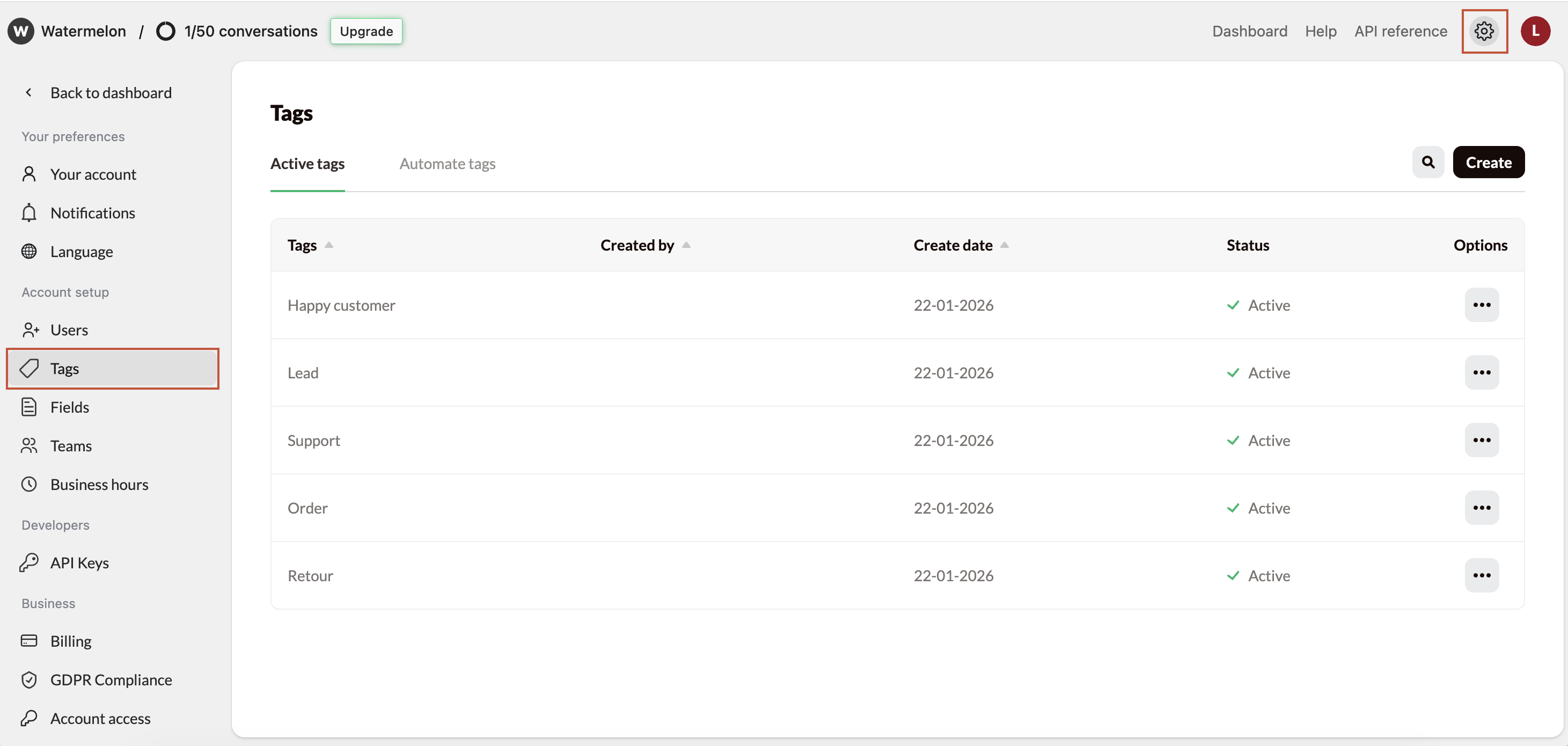
Manage Tags
Create a new tag
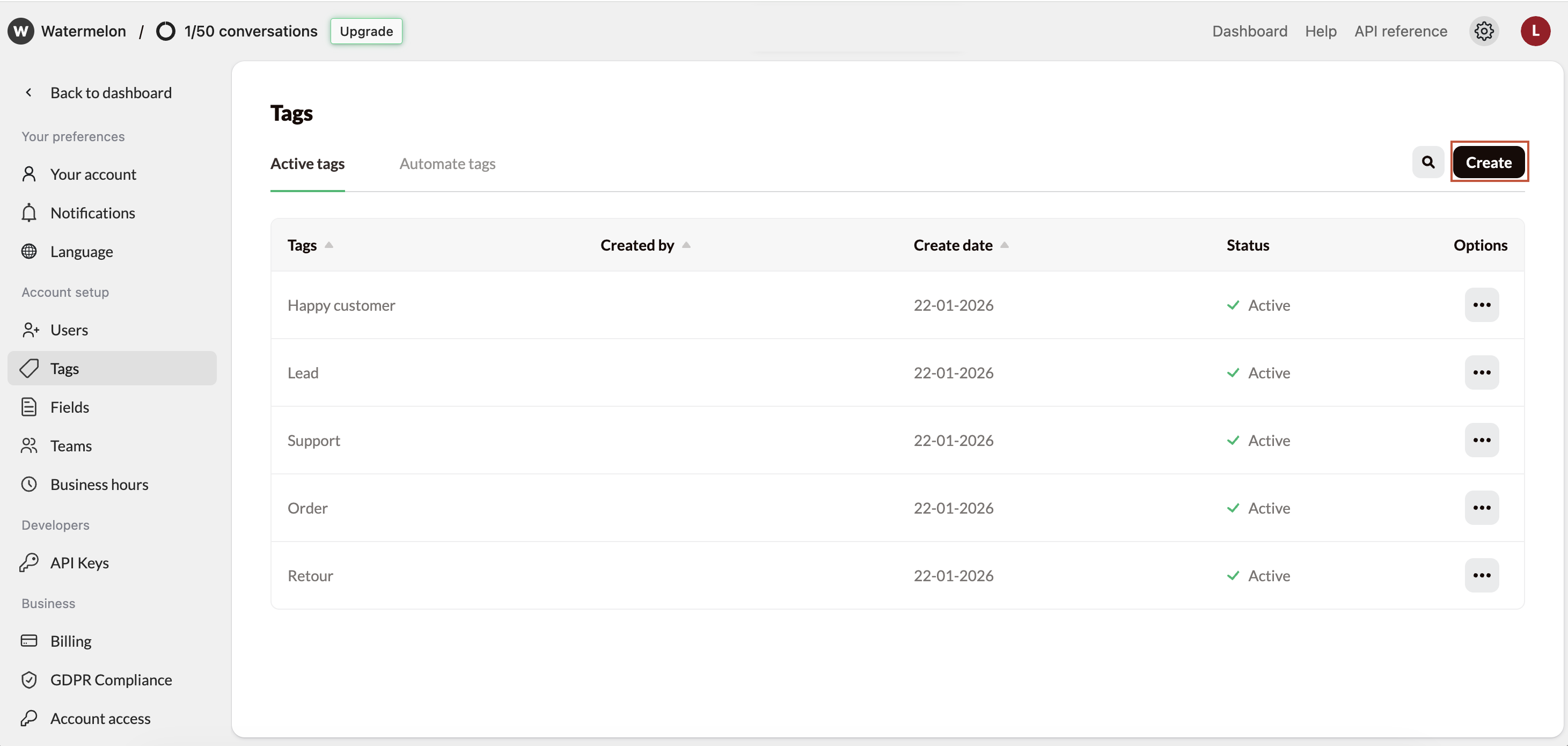
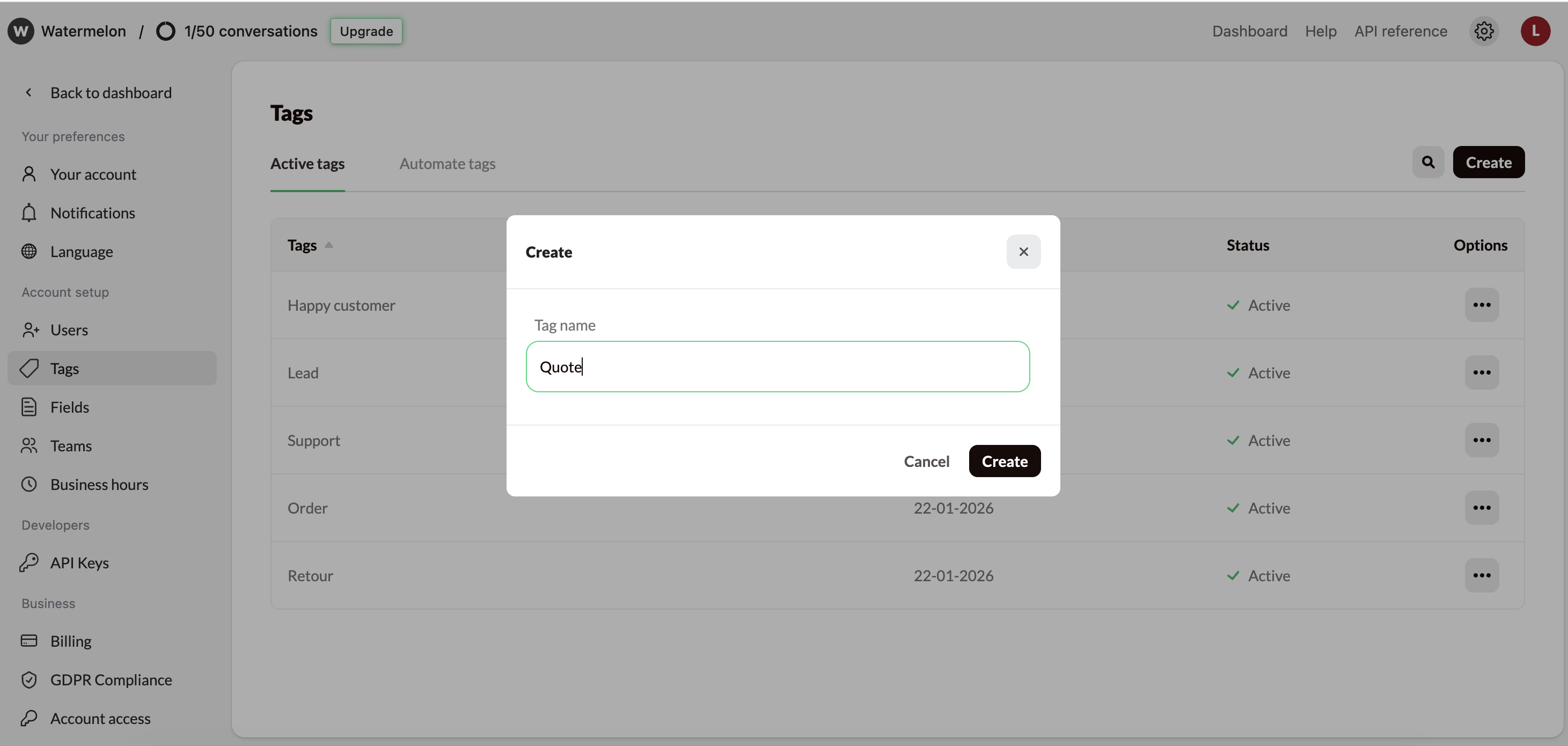
Your new tag is now available to use in conversations and, if relevant, in automation rules.
Edit a tag
Update a tag’s name by clicking the three dots under Options and selecting Edit.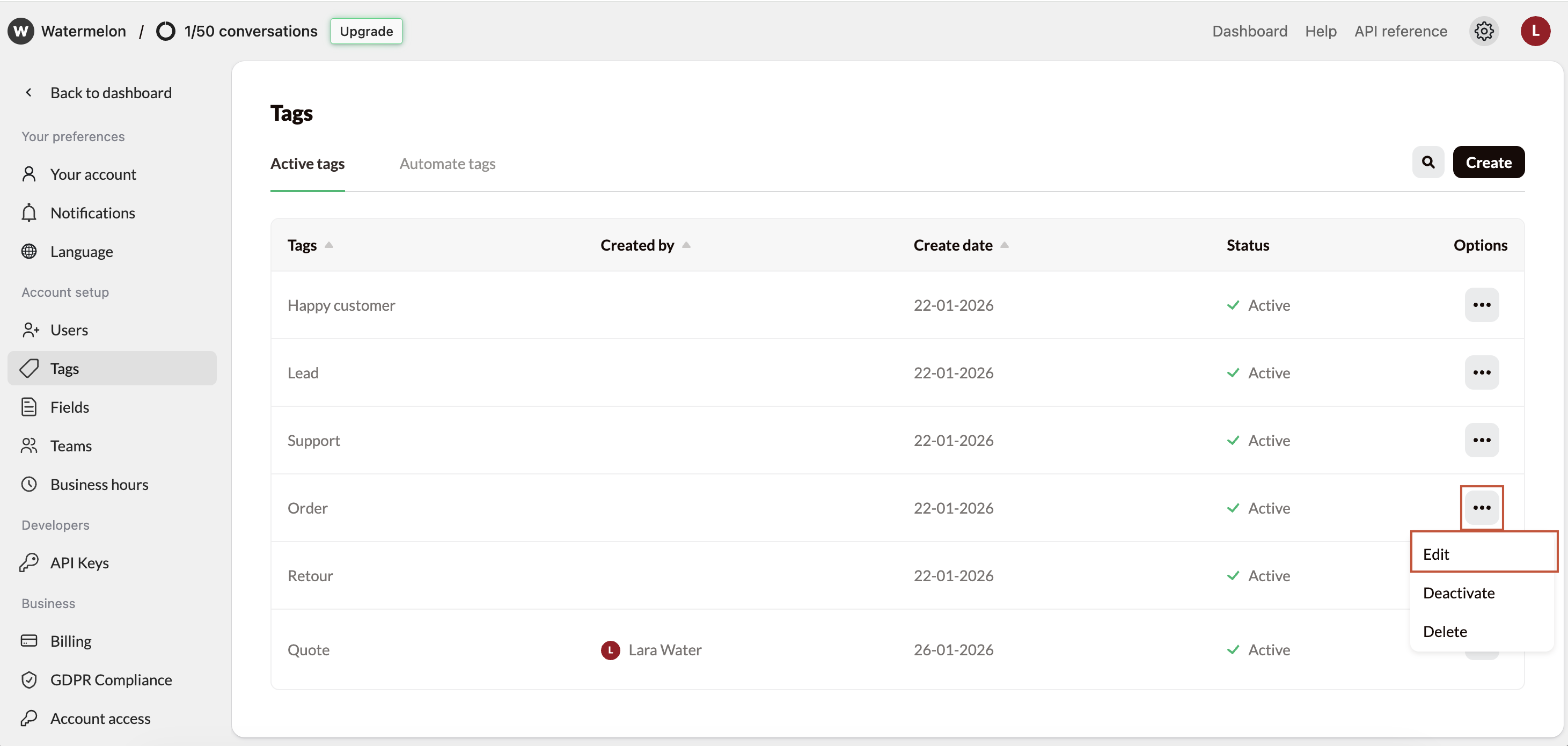
Deactivate a tag
Deactivate a tag by clicking the three dots under Options and selecting Deactivate. Useful if you might want to reactive this tag later.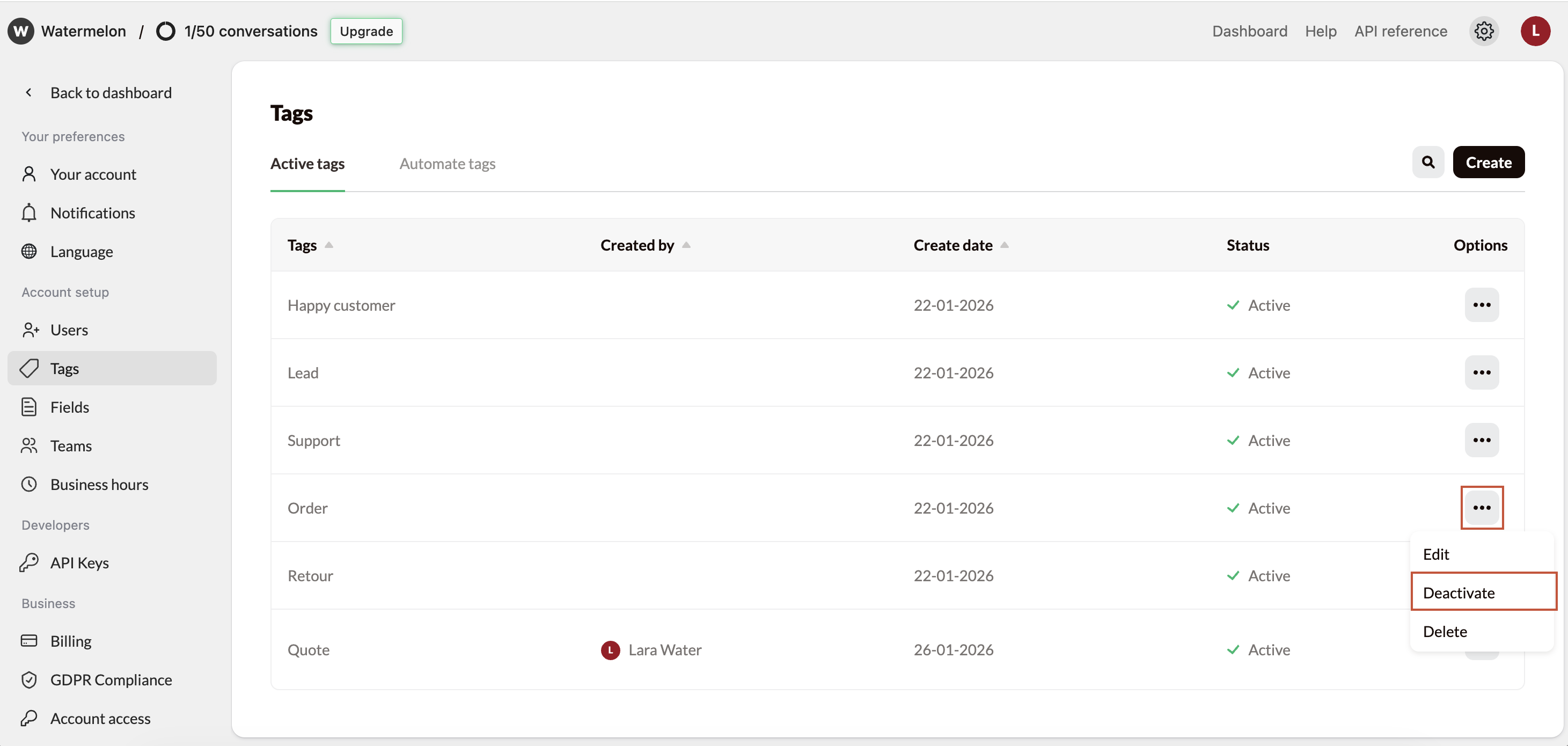
Delete a tag
Remove tags your team no longer uses to keep things tidy. Delete a tag by clicking the three dots under Options and selecting Delete.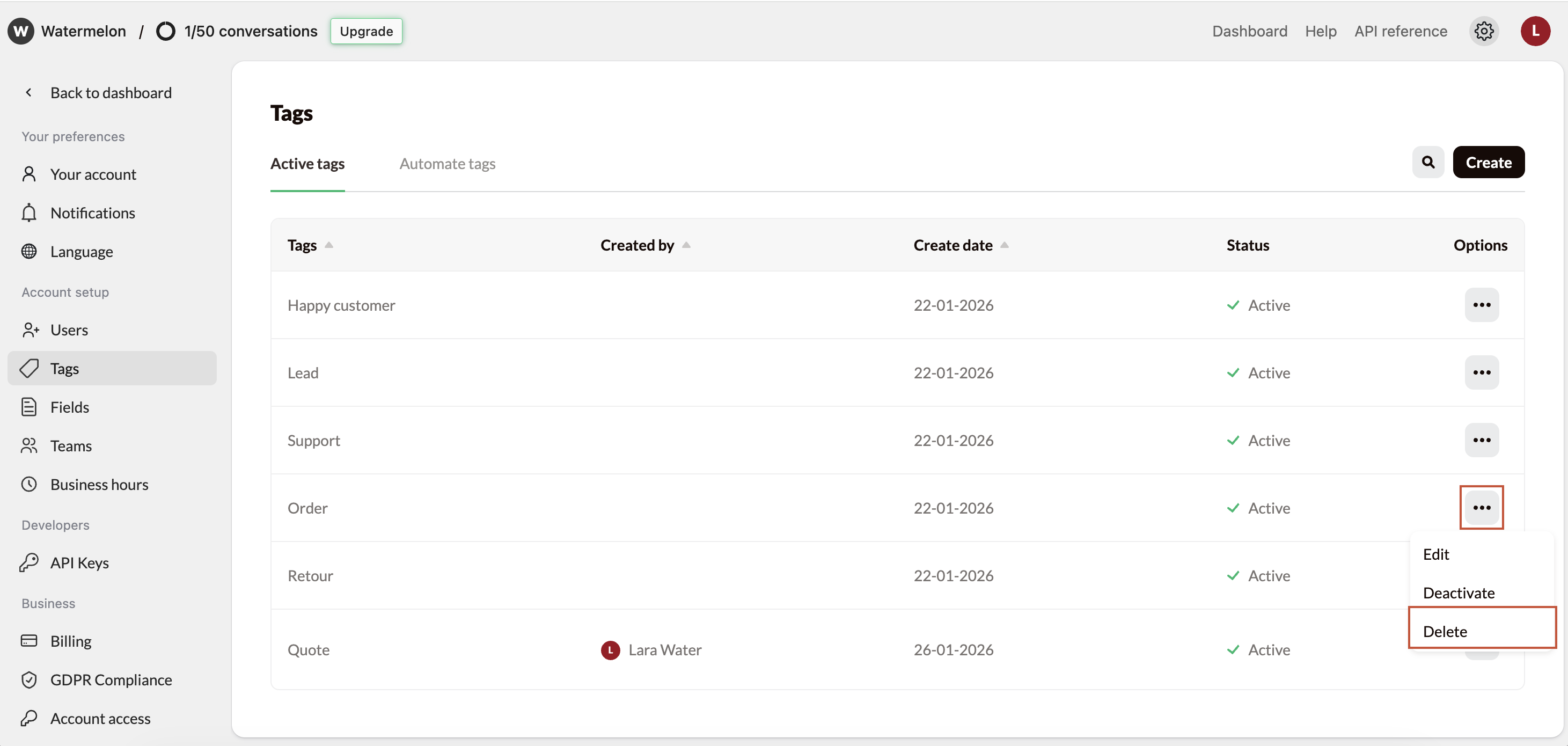
Search a tag
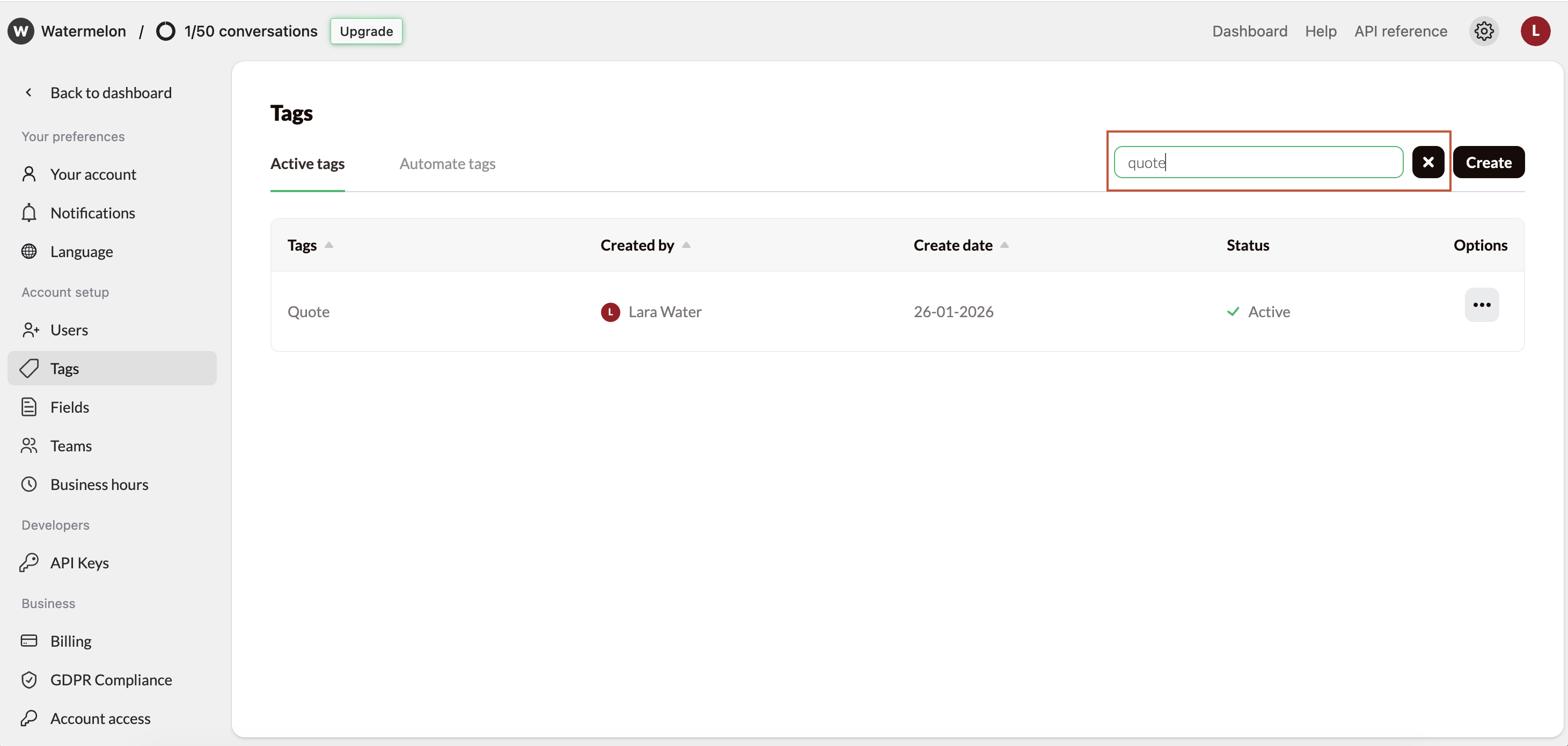
Use the search option to quickly find the right tag.