

Why work in teams?
Working in teams allows your organization to:- Distribute conversations among the right people or departments
- Collaborate on customer questions with shared visibility
- Track ownership of conversations and follow-up actions
- Maintain consistency across agents who represent the same brand or region
Teams are only available in Business or Enterprise plans.
Viewing Team Conversations
Open your Inbox
Go to Inbox from the menu. You’ll see all conversations assigned to you and, depending on your permissions, those assigned to your team.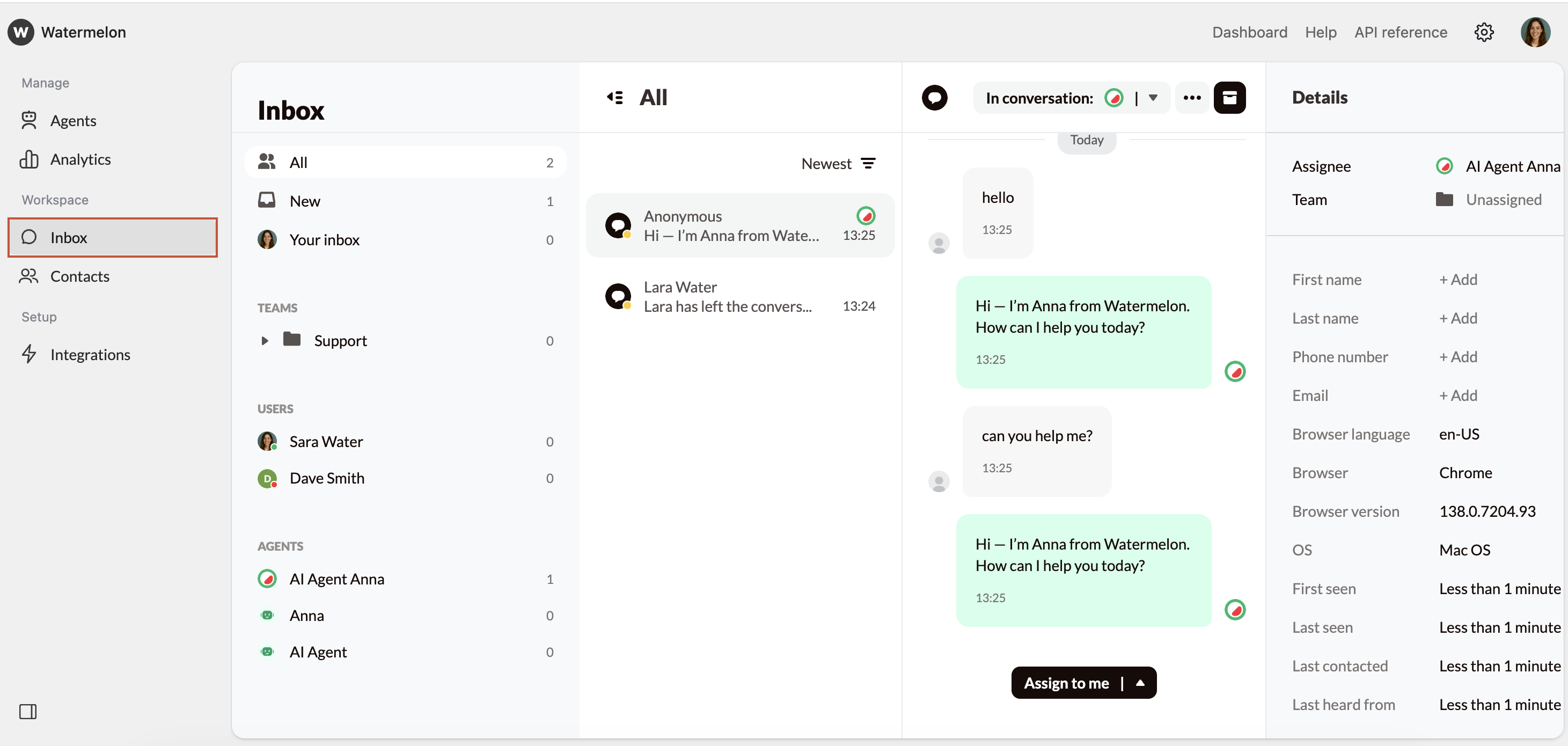
Filter by Team
In the left panel of the inbox, you can filter conversations by team to focus on the ones most relevant to you.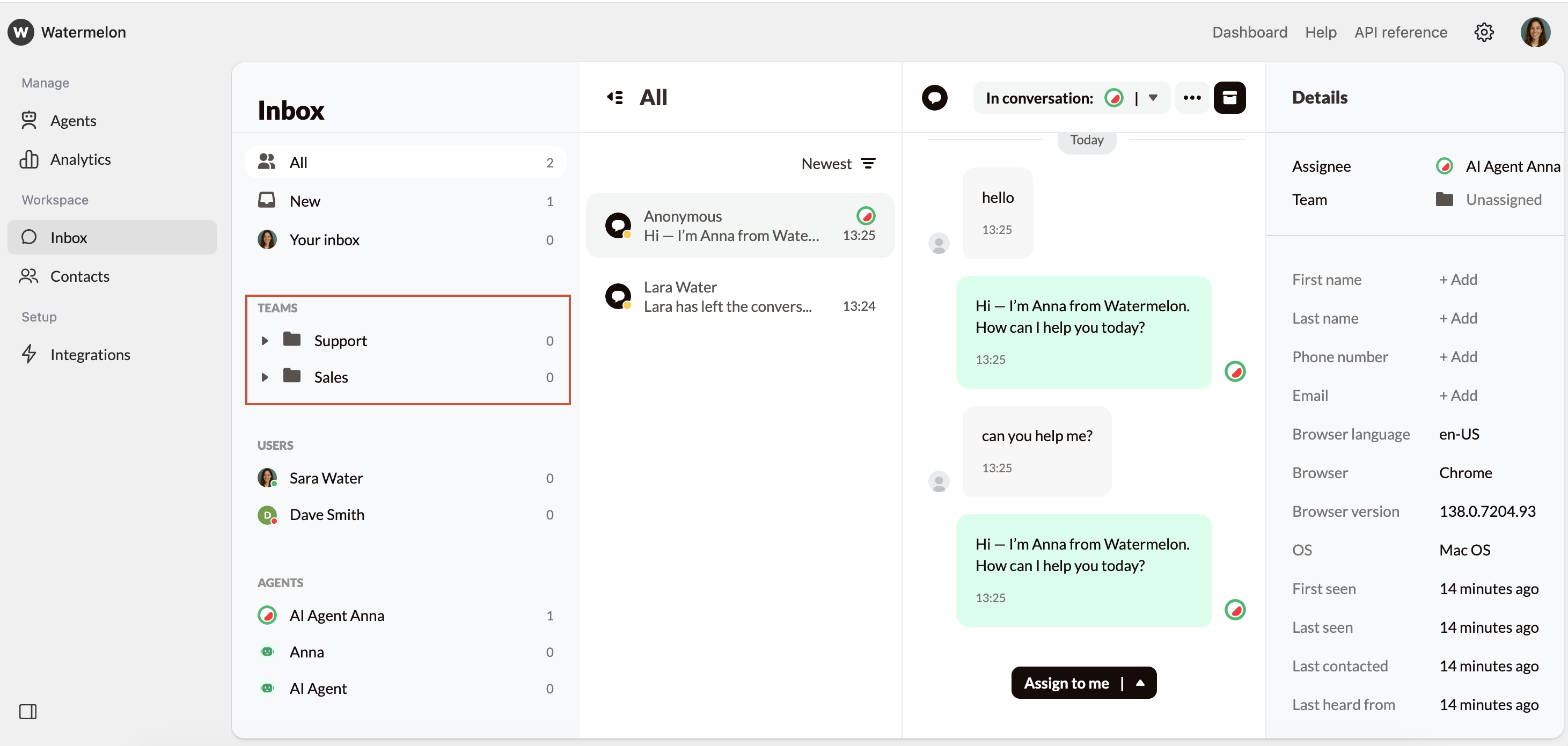
Assign or Reassign a Conversation
If the conversation is assigned to you, you may (depending on your organizations permissions) reassign it to another user or to a team. To do this, select the drop down “In conversation”, and select how you would like to proceed.Administrators can assign conversations between any teams to balance workload or direct specific cases to specialized departments.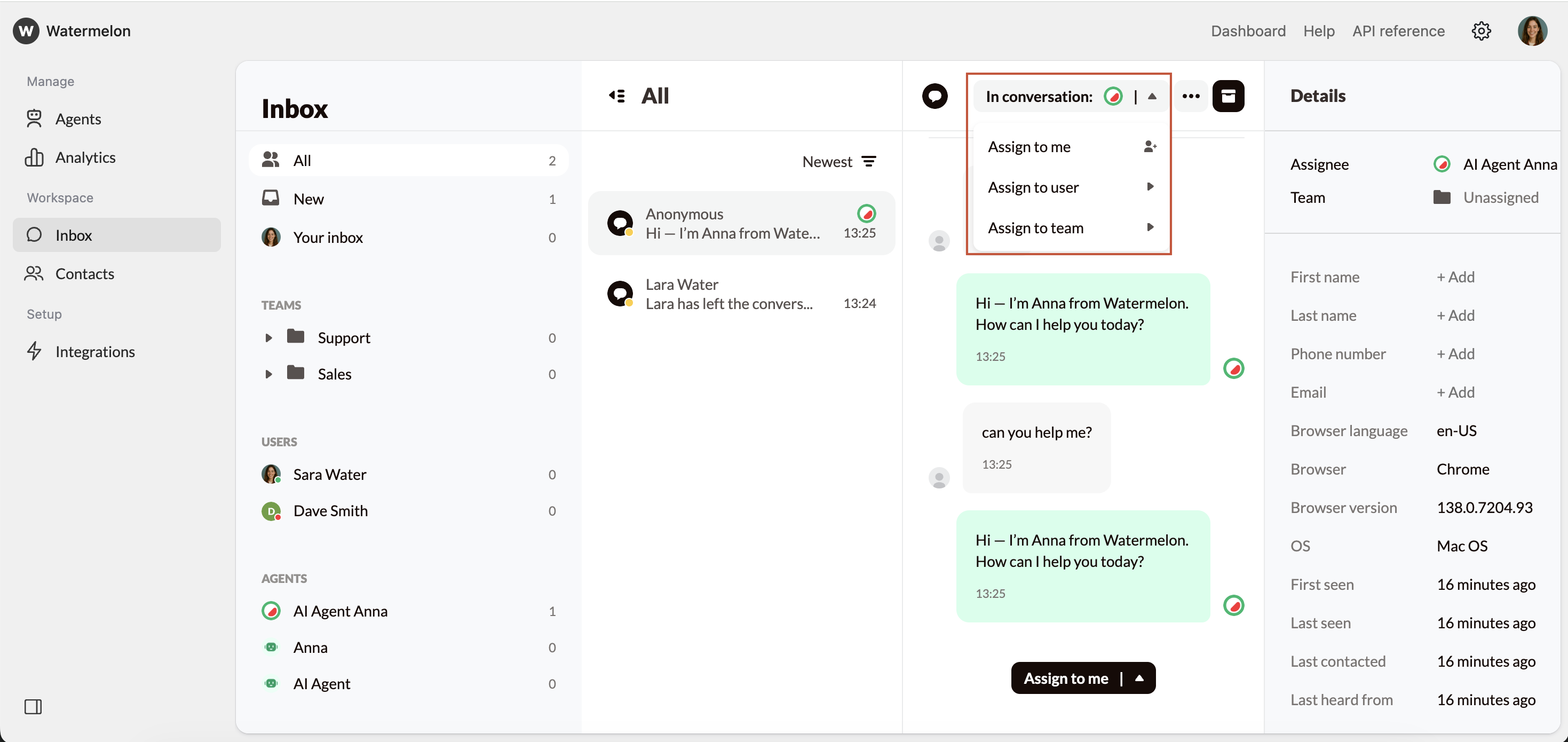
If you forward it to a team, the assignee will remain “Unassigned” until an admin assigns it or a user picks it up.
Best Practices for Team Collaboration
- Use clear team names such as “Sales – DACH” or “Support – NL” to make assignment easy.
- Keep conversations centralized to avoid duplicate follow-ups.
- Communicate internally using notes before transferring a conversation.
- Review team workloads regularly to ensure balanced distribution and short response times.