Setting Business Hours
Business hours let your AI Agent know when live agents are available to step into a conversation and enables a smooth handover between automated and human support.Business hours settings are available in Starter, Advanced, Business and Enterprice licenses.
Locate the Business Hours Settings
Go to Settings in the top right corner, then select Business hours from the panel on the left.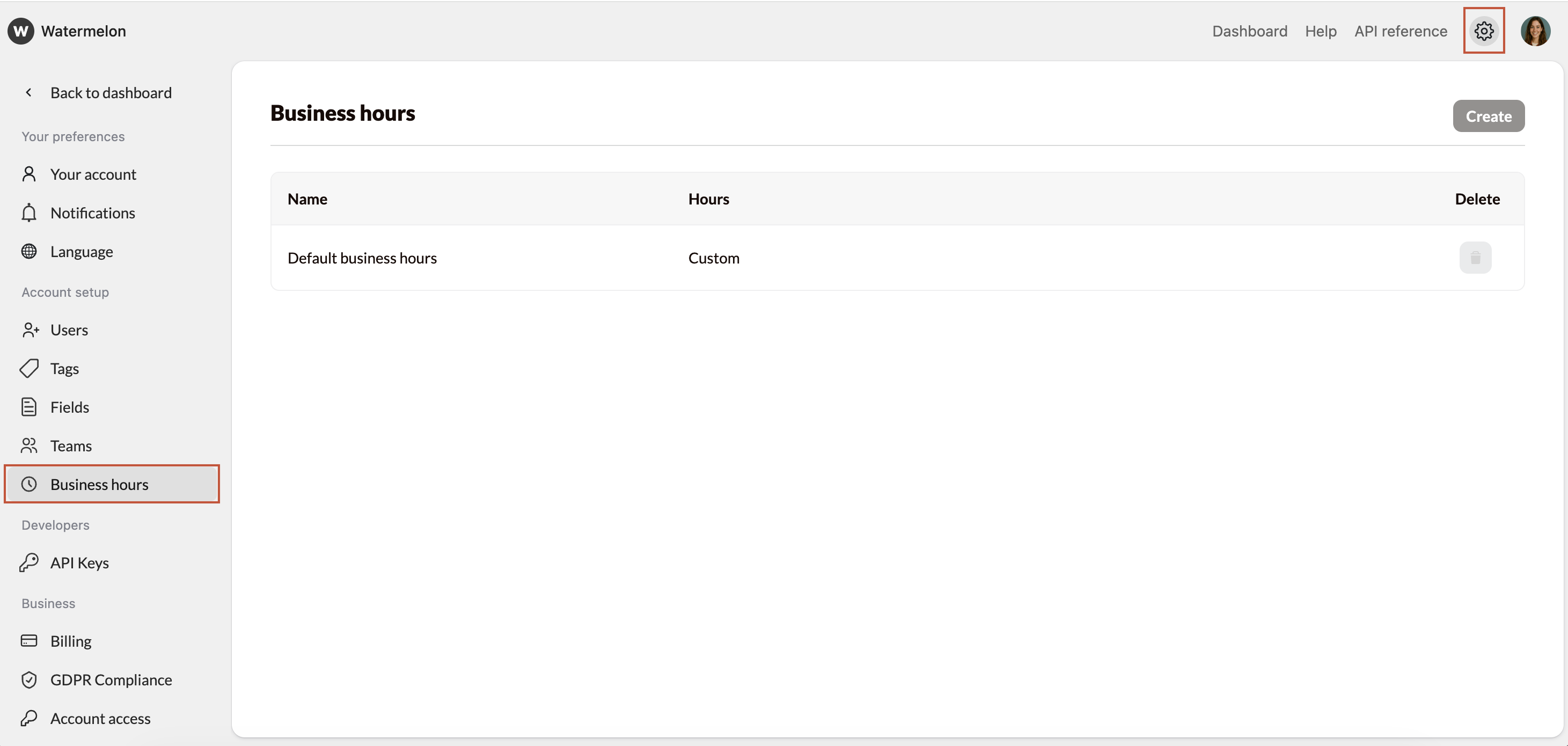
The ability to set multiple business-hour schedules (for different teams, regions, or channels) is currently in development and will be available in a future update!
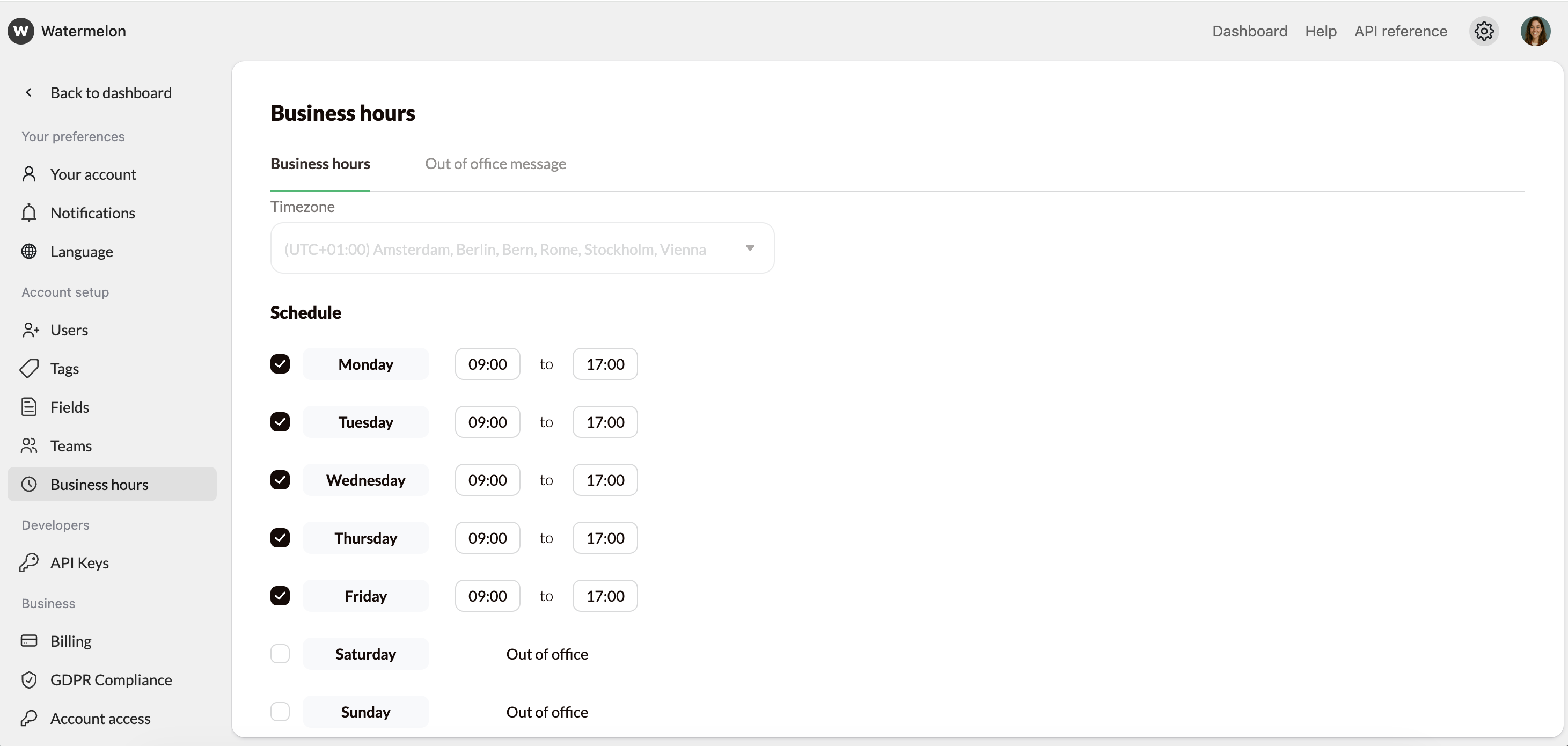
Business hours apply only to live human support availability. Your AI Agent will remain active and continue responding at all times, even when your team is offline.
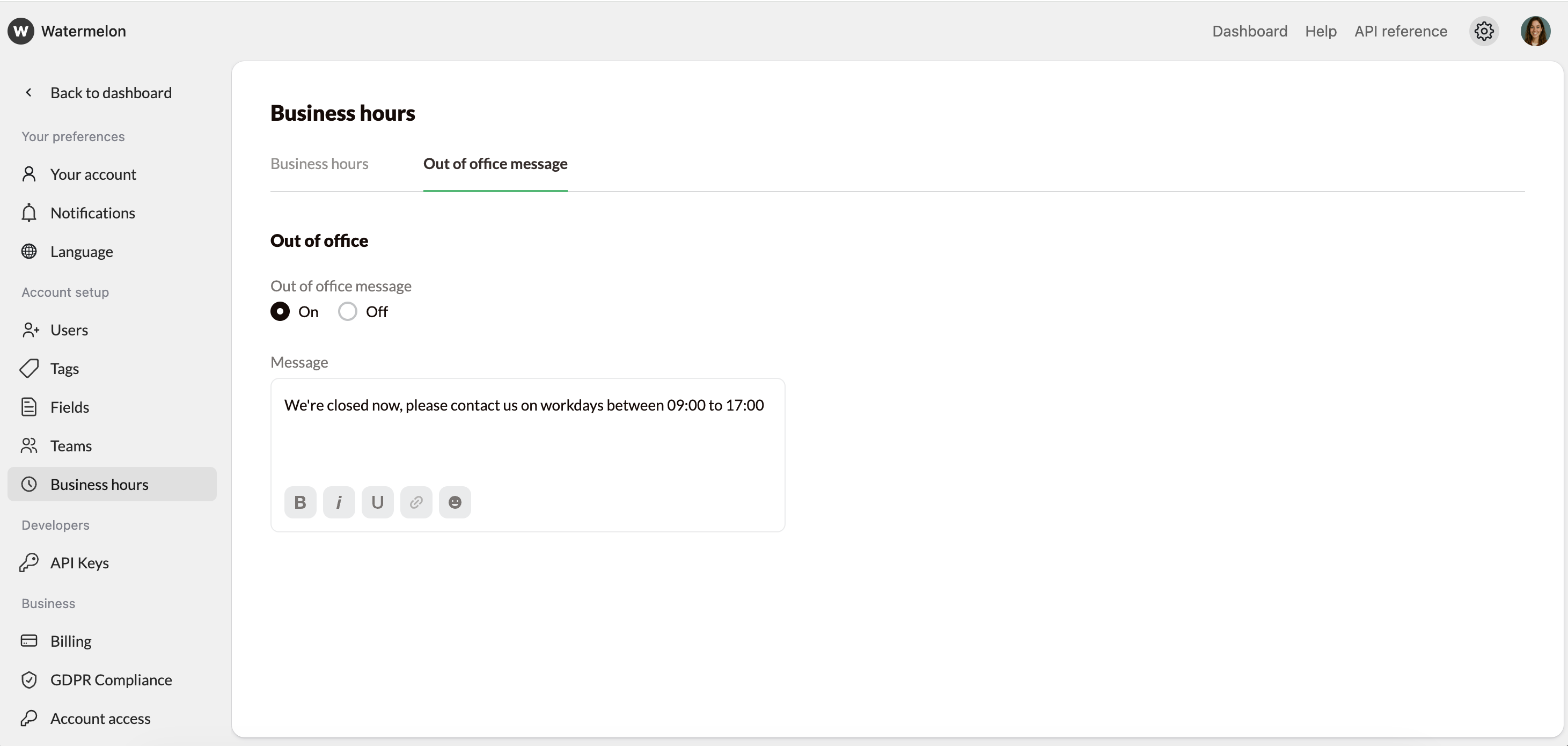
Setting an Out-of-Office Message
To set it up:Open the Business Hours Settings
Go to Settings in the top right corner, then select Business hours from the panel on the left.