

Setting Your Status
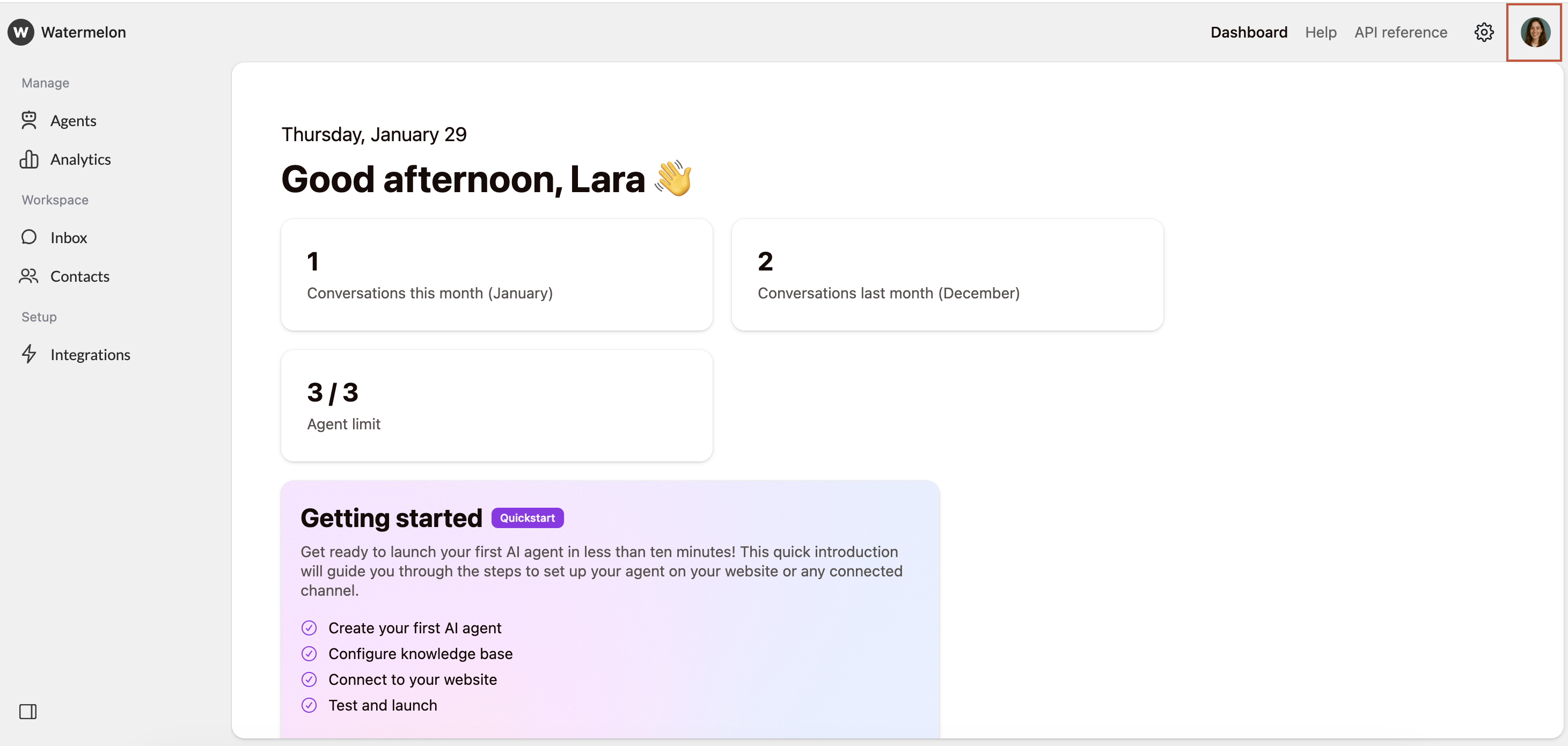
Set Status
Select either “Online” or “Away” to set your status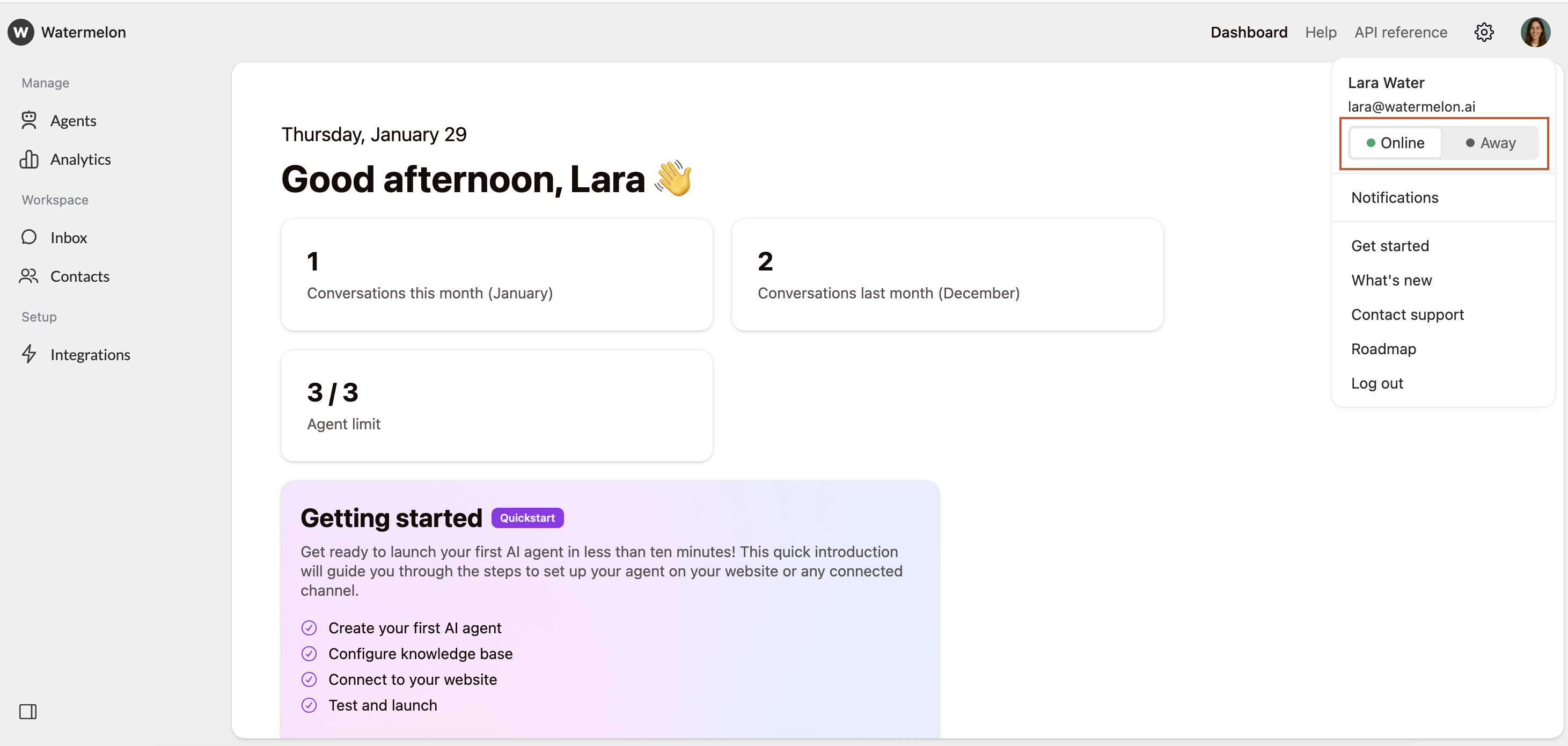
| Status | Meaning |
|---|---|
| 🟢 Online (default) | You are available to handle conversations. |
| 🟡 Away | You are currently unavailable, but you will still receive messages and notifications. |
| 🔴 Offline | The Offline status is automatic and appears when you are logged out. It cannot be selected manually. |
You can see the status of other team members in two places:
- In the Inbox: Under “Users” in your inbox you can see your team members’ names, alongside a colored status icon.
- When assigning a conversation: When you assign a conversation to a team member, their status icon appears next to their name, helping you choose the right person based on availability