

How document sharing works
The AI Agent can only send text-based responses, including links. This means:- Files must be accessible via a public URL
- The AI Agent sends the link, not the file itself
- You control when and how the link is shared through instructions
Step 1: Make sure your file has a URL
To share a document, it must be available at a publicly accessible URL. If your file already has a URL If your document is already hosted online (for example on your website, help center, or cloud storage), make sure:- The URL is public
- No login is required
- The link remains stable over time
Creating a document URL within WatermelonIf your file does not yet have a URL, you can create one using the Document Scraper.
- Upload the document in the Document Scraper
- Download the document from the Document Scraper
- Open the downloaded document in your web browser The URL shown in the address bar is the direct link to your document
- (Optional) Remove the document from the Document Scraper If you want the AI Agent to use the content of the document to answer questions, leave the document in the Document Scraper. If you only want to share the link, you can safely delete it after creating the URL.
Step 2: Write clear instructions for the AI Agent
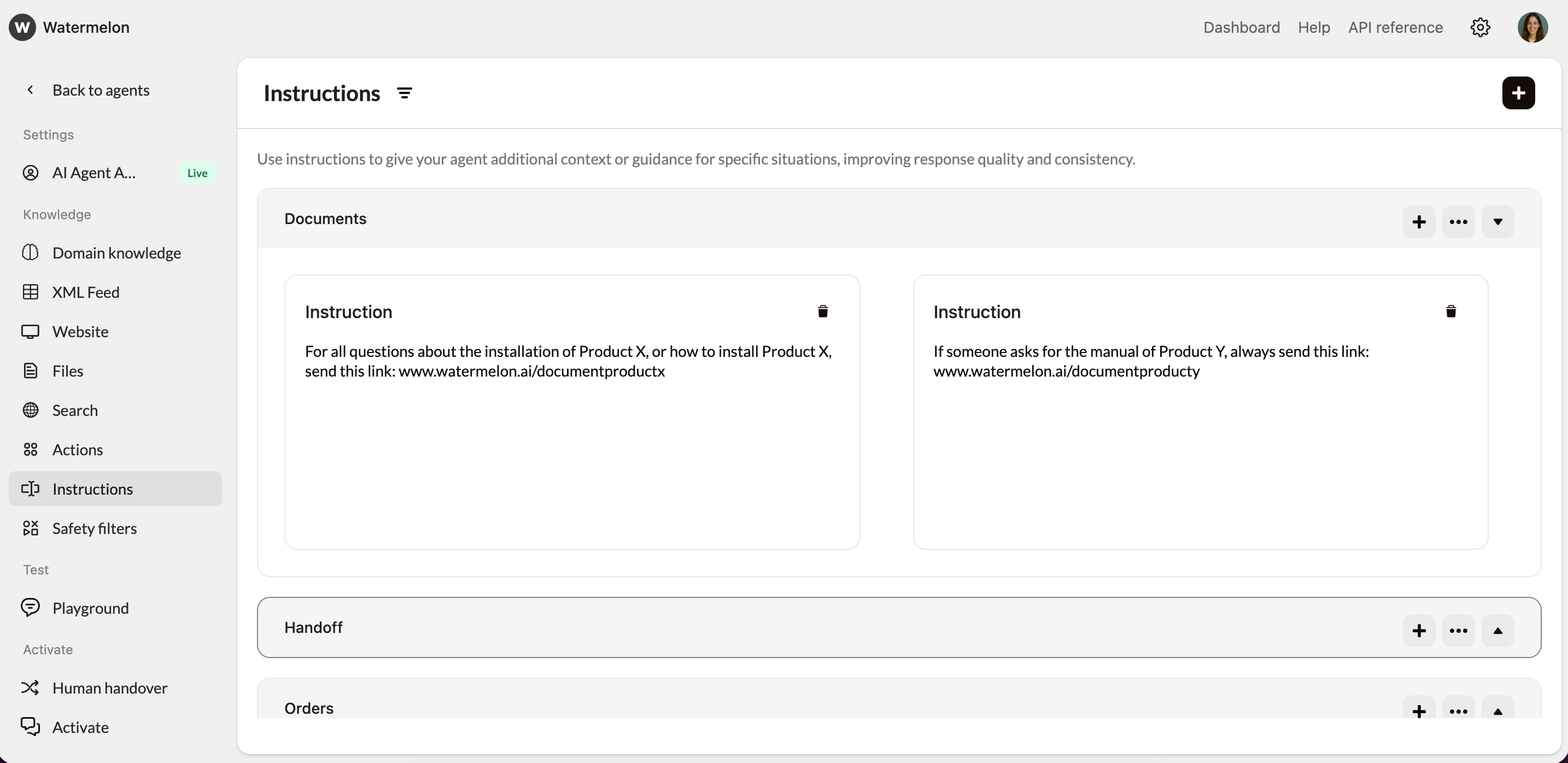
Once you have the document URL, you need to tell the AI Agent when and how to share it. This is done by adding instructions to the Agent. Be as specific as possible to avoid ambiguity. Example 1: Installation guideFor all questions about the installation of Product X, or how to install Product X, send this link: Document URLExample 2: Product manual
If someone asks for the manual of Product Y, always send this link: Document URL
When you update a document, the URL may change and the AI Agent won’t automatically detect this.Always update the document URL in the Agent’s instructions, or use a stable URL to reduce maintenance.