

After setting up the URL, you can connect this to a QR code, making it easy for customers to start chatting.
Why use a QR code?
- Lower the barrier to contact: Customers don’t need to search for your phone number or save it first. One scan or click opens WhatsApp with a message ready to send.
- Turn offline moments into conversations: A QR code on flyers, posters, packaging, or business cards lets people start a chat instantly, even when they are offline or on the go.
- Start the conversation with context: Because the start text is prefilled, you already know why someone is reaching out. This helps the AI Agent respond faster and more accurately.
- Reduce manual work for your team: By triggering the AI Agent immediately, common questions can be handled automatically before a human needs to step in.
- Increase response rates: Scanning a QR code or clicking a link is easier than filling in a form, which makes customers more likely to actually reach out.
- Use one link everywhere: The same WhatsApp URL can be used in emails, on your website, and in printed materials, keeping your setup simple and consistent.
How to create the URL
You create the URL by filling in this format:https://wa.me/number?text=starttext
Follow these steps:
- Replace number with the phone number you use for WhatsApp. Use the international format and leave out zeros, parentheses, and dashes.
- Replace starttext with the message that should automatically appear in the chat. Use plus signs (
+) instead of spaces. - This start text is required to trigger the AI Agent.
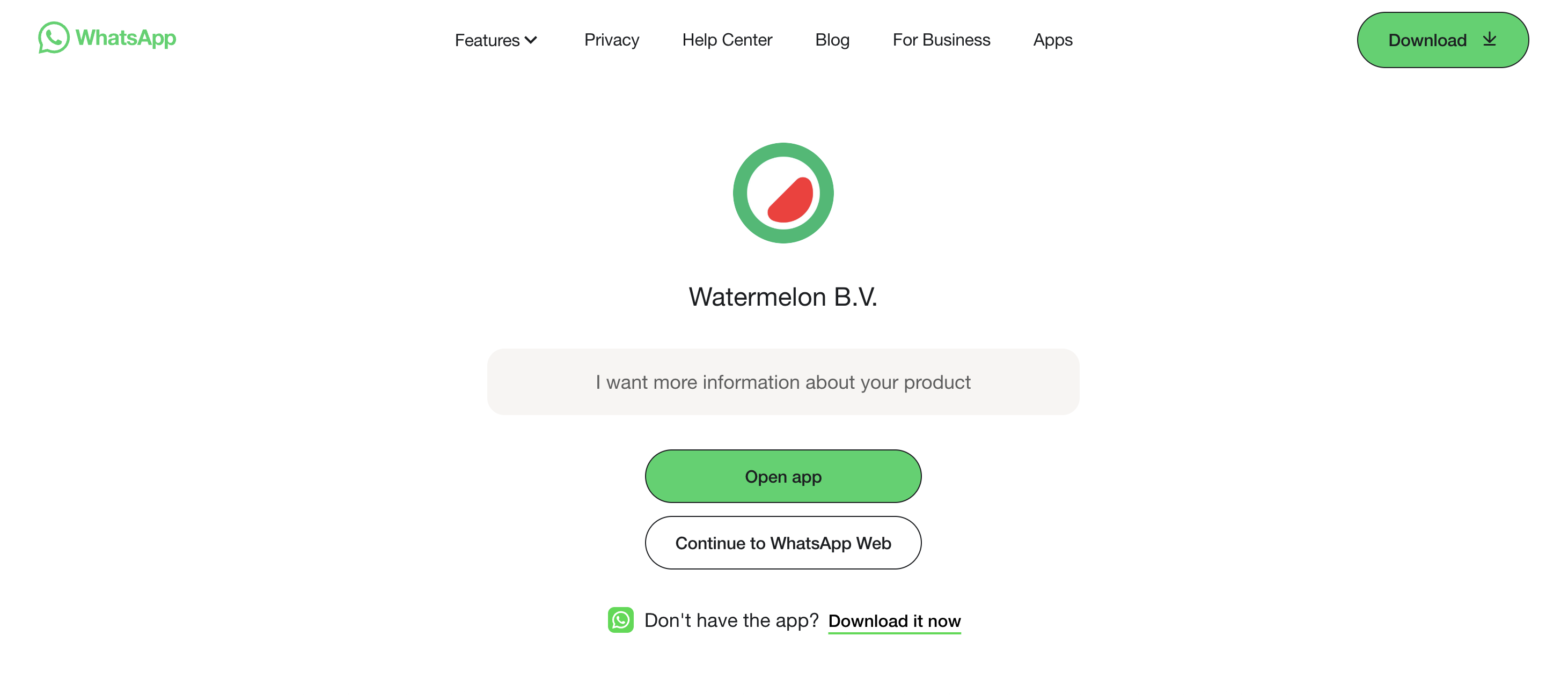
ExampleWhen someone clicks this link on a laptop, WhatsApp will ask to open the App or to continue to WhatsApp Web.
If your phone number is31612345678and the start text is I want more information about your product, the URL will look like this:
https://wa.me/31612345678?text=I+want+more+information+about+your+product

How you can use the URL
You can use this WhatsApp URL in many places, for example:- In your email signature
- On your website