What Are Action Templates?
Templates are pre-built Actions for common systems and use cases.
Each template contains:
- A validated OpenAPI schema
- Predefined authentication method
- Example paths and responses
- Built-in health check URL
- Ready-to-use test data
Once added, the template behaves like any other Action — you can edit, duplicate, or extend it.
Available Templates
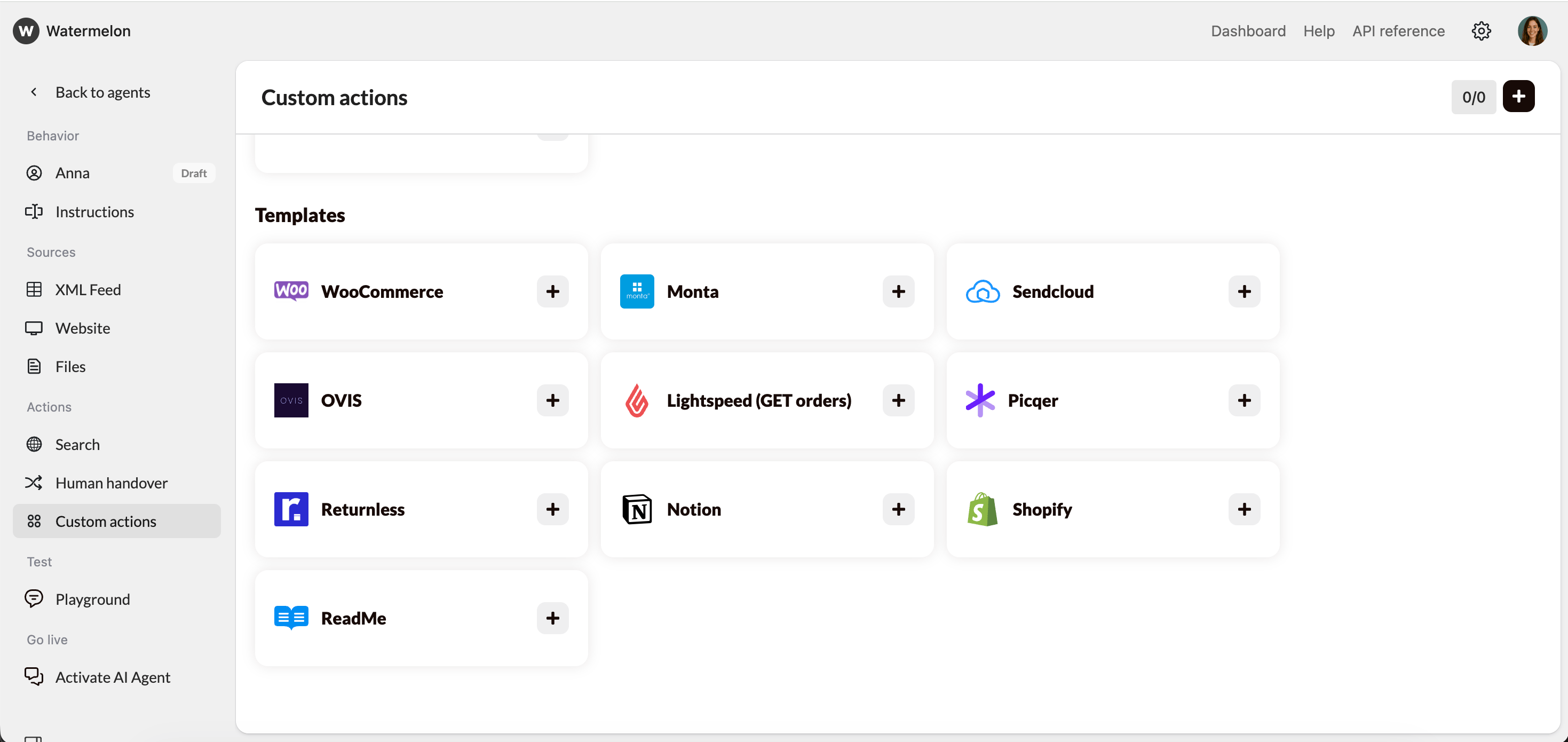
Current templates in Watermelon include:
| Template | Description |
|---|
| WooCommerce | Retrieve product, order, or customer data from your WooCommerce store. |
| Monta | Connect to Monta’s API to manage EV charging points and sessions. |
| Sendcloud | Track shipments, fetch shipping labels, or manage orders through Sendcloud. |
| OVIS | Integrate OVIS order and inventory management data into your Agent. |
| Lightspeed (GET orders) | Retrieve recent orders directly from Lightspeed Retail or eCom. |
| Picqer | Fetch warehouse or stock details via Picqer’s API. |
| Returnless | Handle return requests and statuses automatically. |
| Notion | Retrieve or list database entries, pages, or notes from your Notion workspace. |
| Shopify | Retrieve product, order, or fulfillment data from your Shopify store. |
| ReadMe | Connect to API documentation stored in ReadMe to fetch structured data. |
Templates are continuously added and updated. Contact Support if you’d like a new template added for your API.
How to Add a Template
- Go to AI Agent → Custome Actions.
- Under Templates, select the integration you want (e.g. Shopify).
- Click the + icon to add it to your Actions list.
- Fill in the required fields (e.g. API key or authentication token).
- Save and test it using the Playground.
Each template includes predefined input and response fields — no schema writing required.
Editing or Extending a Template
After adding a template, you can:
- Edit the schema to adjust parameters or endpoints.
- Add extra paths to expand functionality (e.g. add POST /orders next to GET /orders).
- Rename fields to match your internal data structure.
- Duplicate the Action to create a versioned variant (e.g. Lightspeed Orders v2).
Always re-validate the schema after making changes.
When to Use a Template vs. Build Your Own
| Scenario | Use a Template | Create Your Own Action |
|---|
| You use a known platform like Shopify, Notion, or Lightspeed | | |
| You need quick setup without coding | | |
| You have a custom internal API | | |
| You want to connect multiple endpoints from one system | (extend template) | |
| You want complete control over schema structure | | |
Best Practices
- Test immediately after adding a template using real or sandbox data.
- Don’t change authentication type unless your API key structure differs.
- Keep templates isolated — avoid mixing environments (e.g. staging + production) in one Action.
- Version your custom edits by duplicating the Action and renaming it (e.g. “Returnless v2”).
- Contact Support if the base template doesn’t fit your workflow — we can create new templates upon request.
Troubleshooting Template Actions
| Issue | Likely Cause | Solution |
|---|
| Validation failed | Schema edited incorrectly | Revert or re-import template |
| 401 Unauthorized | Wrong API key | Recheck authentication fields |
| 404 Not Found | Missing or invalid endpoint | Verify endpoint in API docs |
| Playground won’t run | Unfinished Action in Concepts | Delete draft and retry |
| Wrong data returned | Field mismatch | Update query parameters in schema |